Managing properties in SketchUp Pro objects
SketchUp Pro just turned 20 this year. The software has evolved a lot since its launch in August 2000. One of the main advances in SketchUp Pro lies in the way properties are associated with objects. Understanding how to manage properties on SketchUp Pro objects is a fundamental requirement for starting to work with the software using BIM-based (Building Information Modeling) work processes.
What is an object in SketchUp Pro?
An object, in SketchUp Pro, is any modeled shape that is encapsulated in a group or a component. There are important differences between groups and components.
When a component is created, SketchUp Pro places it in the file's component library, so it can be used as a master (or a type). This way, you can make copies of this component in the modeling space, and each time a geometric change is made to a copy (or instance), SketchUp applies the same geometric change to the type-object (the master), which causes the other instances to change as well.
An object created as a group behaves differently. A group is presented to the SketchUp Pro user only as an instance; therefore, even if you have made several copies of a group, each one of them is independent.
What is a property?
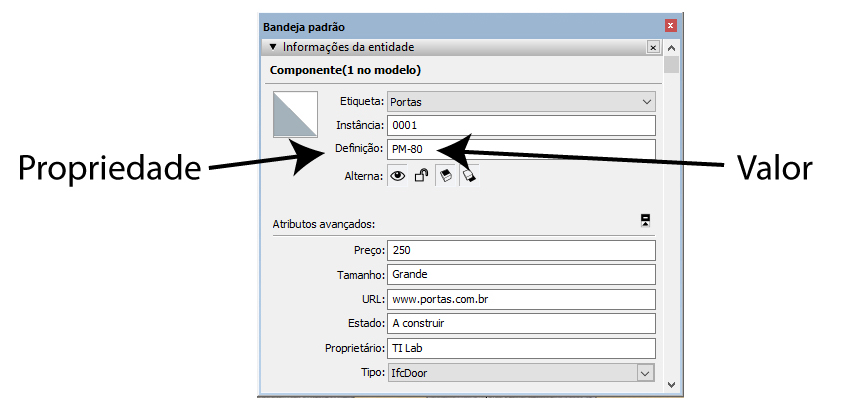
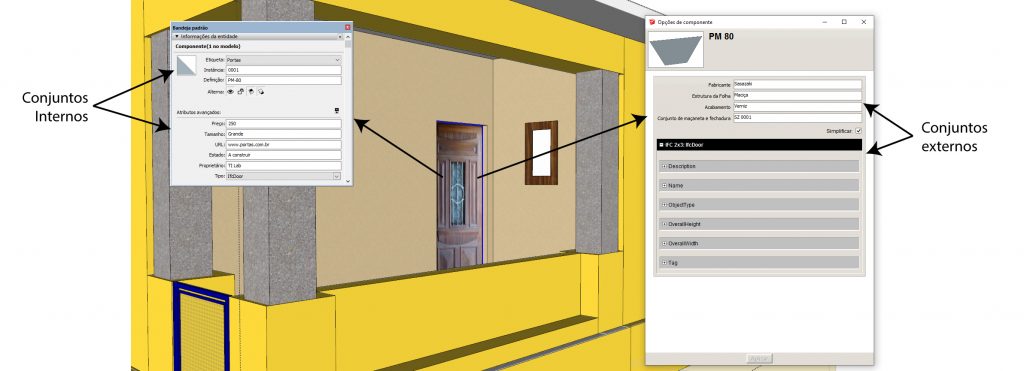
A property is any non-geometric information (that is, in text, numbers, or other characters) that can be associated with an object (group or component). Properties can be used to identify an object in a general way, that is, to give it a name (or value) (for example, PM-80, 80 cm wooden door). It is also possible to associate properties for the purpose of conveying other specifications of the object, such as a door's model, the structure of the door leaf, its finish, and the type of handle and lock set to be installed. Figure 1 indicates, in SketchUp Pro, which field is called property and which is called value.
SketchUp Pro's property sets
There are several "places" where you can associate properties with a SketchUp Pro object. We will call these "places" sets.
Some of these sets are internal, that is, part of SketchUp Pro's own development. In these sets, the user can fill in the value of a property (the name given to a component's type, for example), but cannot create new properties.
These, therefore, are the internal property sets:
- Entity Info Set (Entity Info)
- Advanced Attributes Set (Advanced Attributes)
There are, however, ways to create sets that allow the inclusion of new properties and values. For this post, we will call them external sets. The external sets are:
- Dynamic Attributes Set (Dynamic Attributes)
- Classification Systems Sets (classification systems)
Figure 1 shows where, in the SketchUp Pro interface, the property sets associated with an object are located:
How are sets and properties associated with an object?
SketchUp Pro can associate the filling in of property values with objects in two ways: by type or by instance.
When a property value is associated with the type, any change will be updated across all instances of that type.
Some properties have their values tied to instances: thus, a value filled in on one instance is not transferred to other instances of the same type; in this case, a change made to the value of one instance is not transferred to others.
Here's an important piece of information: even for the properties you create, it is SketchUp Pro that decides how the values are associated.
How will I know which property values are associated with types, and which are linked to instances?
To find out how the association between values and types or instances works, look at Table 1 - Ways to associate values with SketchUp Pro objects.
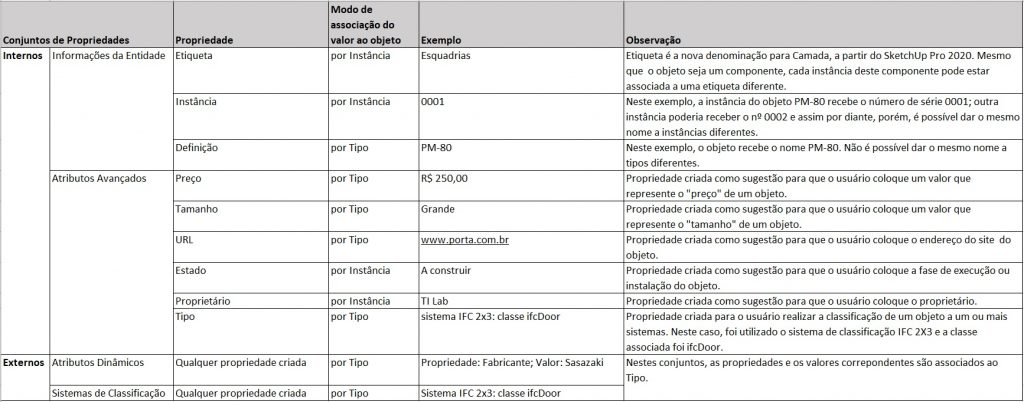
As you study the table, pay attention to the examples and notes that illustrate what happens with each property and value. We suggest you run tests on your own objects, to check what happens with the properties and values associated with them. This will make it easier to understand what will happen with the properties and values you intend to create, enabling clearer and more objective management of non-geometric information in SketchUp Pro objects.
Would you like to deepen your knowledge of using SketchUp in BIM workflows? Explore EBBIM’s Curso SketchUp Pro para BIM. The training covers model structure, component properties, IFC exchange and LayOut documentation, complementing the topic of this post.