Edge Style with Profile
Find out how to change this in SketchUp!
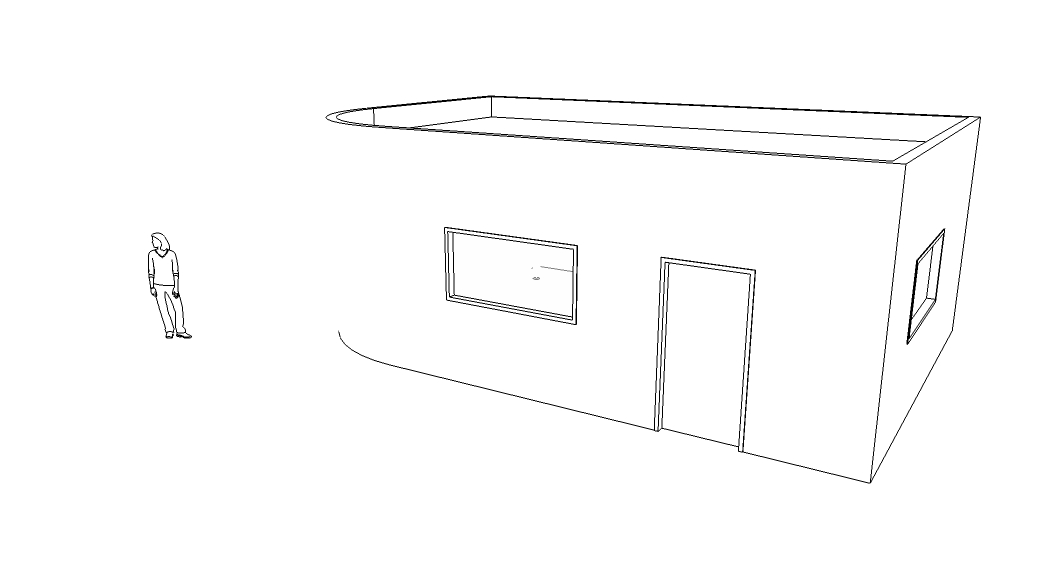
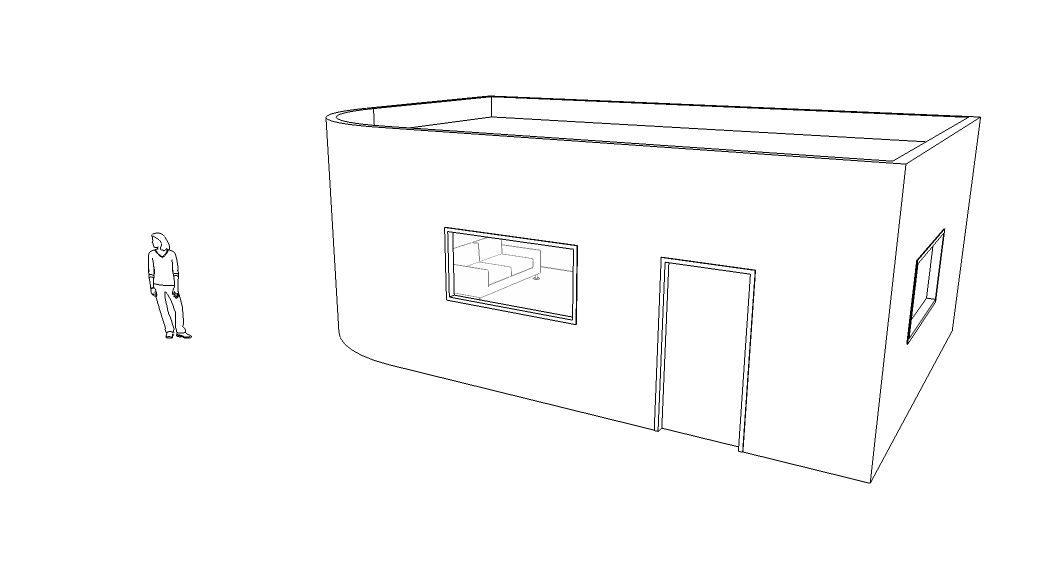
SketchUp has several display features with styles, but sometimes it's worth using simplicity to achieve a clear and objective language in the presentation of your project. Among the face style options, the Hidden Lines mode is a good option for achieving this result. But if your model has curved surfaces that don't show up with Hidden Lines, the solution is to enable the Profile edge style option and enter 1 in the value box.
In the style of the model below, the background color was set to white and the sky was turned off.
See the comparative result below.
Would you like to deepen your knowledge of modeling and organizing projects in SketchUp? Explore EBBIM’s Curso SketchUp Pro do Básico ao Avançado. The training covers modeling sites and buildings, components, materials and scenes, complementing the topic of this post.