How to Use the Publisher Set
Learn how to set the output format for publishing in ARCHICAD
The Publisher Set is the system that organizes all the types of output you need to produce, based on the views and layouts in your project. We call "output" any type of information or drawing that can be printed or exported from a digital file, whether it's an ArchiCAD model or even a Word document.
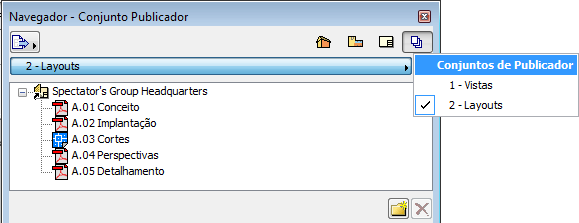
In the Navigator (Navigator) palette, click the Publisher Sets (Publisher Sets) button. Click the bar right below and choose the set you want to publish: Views or Layouts. Then, select the view or layout you want to publish from the list. To select more than one, hold down the Ctrl key.
figure 1 - Publisher Set, choosing a set of views or layouts
Click the Format (Format) tab to choose the output format for publishing the selected items.
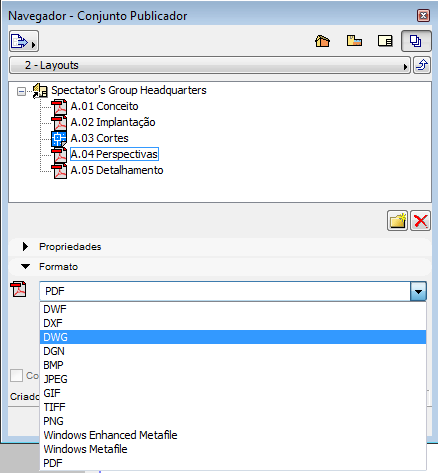
figure 2 - Publisher Set, setting the file output format
Click Options... (Options...) if you want to make advanced adjustments for the publication. In the lower corner, click the Sets to Output button and choose the criteria for publishing the items:
this set (this set): Publishes only the set of items currently selected;
selected items (selected items): Publishes all the selected sets of items (if there is more than one);
all the sets (all the sets): Publishes all existing sets (views and layouts) at once.
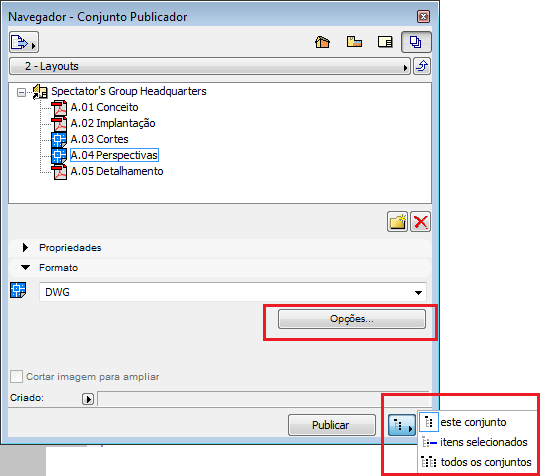
figure 3 - Publisher Set, publishing options
Click Publish (Publish).
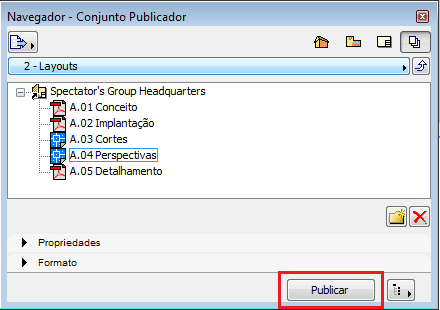
figure 4 - Publisher Set, Publish button
A window may open, asking for the location of a folder where the exported files will be placed. In that case, click Publisher Set Properties (Publishing Properties...) and, in the next window, click Browse... (Browse...) to choose the folder, and then click OK. This window will not appear again once you have set the folder where the output files will be saved. Notice that ArchiCAD now publishes the items to the chosen folder.
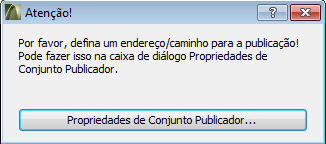
figure 5 - setting the path to save the publication
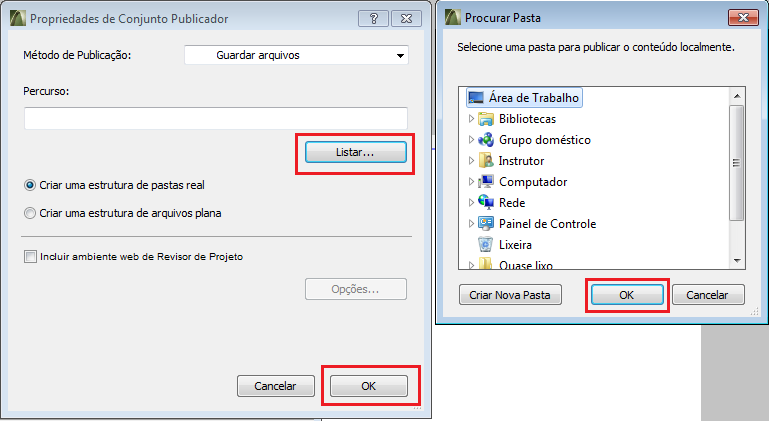
figure 6 - setting the path to save the publication