How to edit a selection using the filter
How to find out how many and which categories of objects are selected
The Filter is a tool with several uses. Based on a given selection of objects, it lets you find out how many objects are selected and to which categories they belong; in the same window where you check this information, there are tools that let you exclude one or more categories from the selection.
Once you have made your selection, you may want to save it, a procedure shown in the next topic.
To try out how to use the filter to refine a selection of objects, follow the procedure below.
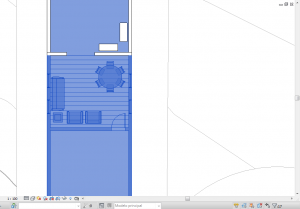
Make a selection of several elements.
figure 01 - selection of multiple objects
Go to the Modify tab; in the Select panel, click the Filter button.
 figure 02 - modify menu|multiple selection
In the window that opens (figure 03), the categories that the selected elements belong to appear, along with the number of objects in each one.
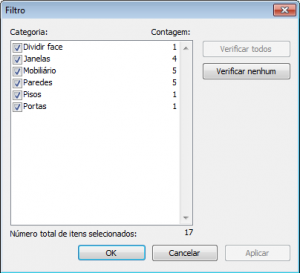
You can deselect all objects of one or more categories by clicking the boxes to the left of their names.
To enable all categories, click the Check All button.
To disable all categories, click the Check None button.
As you edit the selections, the total number of selected elements is updated in the dialog box and in the status bar.
To preview the selection, click Apply.
To finish, click OK.
To exit the filter without changing the selection, click Cancel.