How to edit a morph

Editing the whole element, in parts, by faces, edges, or vertices
The Morph tool is characterized by editing the shape directly on the vertices and faces of the object itself. ArchiCAD has many tools for editing a morph, whether on the body of the element as a whole or in parts, by faces, edges, and vertices.
how to fillet an edge of the morph
Select the morph and click on the edge you want to fillet.
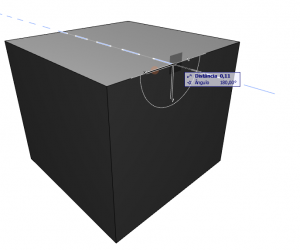
figure 01 - select the edgeIn the floating palette choose the option Fillet/Chamfer Edge(s)... (Fillet/Chamfer Edge(s)...).
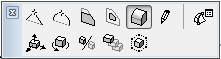
figure 02 - click the Chamfer Edges optionIn the Fillet/Chamfer (Fillet/Chamfer) window that appears, select the Fillet (Fillet) option and set the Radius (Radius).
Turn on the Apply to All Edges (Apply to All Edges) option if you want to apply it to all the edges of the morph and not just the selected one.
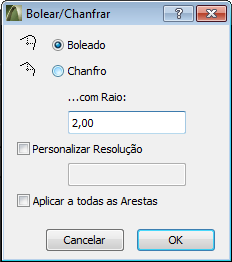
figure 03 - make the necessary settings
Click OK.
Notice that the fillet radius was created.
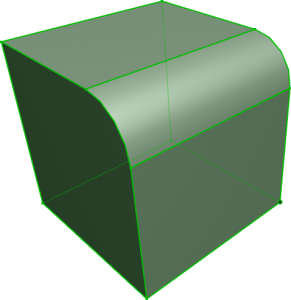
figure 04 - object createdhow to round a corner of a morph
Select the morph you want to change and click on the corner (vertex) to be changed.
figure 05 - select the edgeIn the floating palette select the option Fillet/Chamfer Corner(s)... (Fillet/Chamfer Corner(s)...).
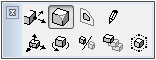
figure 06 - Click the Chamfer Corners optionIn the Fillet/Chamfer (Fillet/Chamfer) window that appears, select the Fillet (Fillet) option and set the Radius (Radius).
Turn on the Custom Resolution (Custom Resolution) option and set the value according to your needs. The higher the value, the smoother the fillet will be.
Turn on the Apply to All Edges (Apply to All Corners) option if you want to apply it to all the edges of the morph and not just the selected edge.
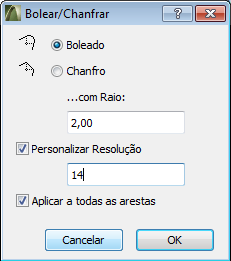
figure 07 - make the necessary settingsClick OK.
Notice that the corner(s) have been filleted.
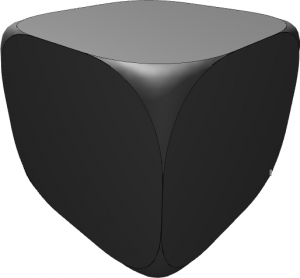
figure 08 - object created