Everything You Wanted to Know About Dimensions!
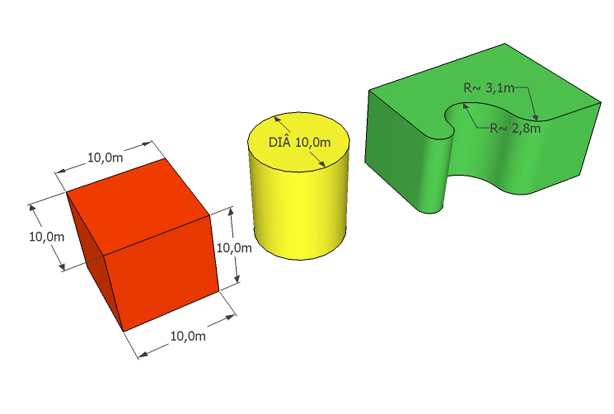
The Dimensions (Dimensions) tool in SketchUp is simple to use and very versatile. To dimension a model, you click on two distinct points of an edge and then set its position. You can also dimension by clicking directly on an entity to get the edge length, the circle diameter, or the arc radius, unless the object is a component or you are in a component's edit mode.
Sometimes you might want to display a different value than what's actually being dimensioned, without changing your model. To do this, double-click on the dimension and type the value. To restore the actual dimension value, double-click again and delete what you typed.
If you want to break the dimension text line to add extra information, double-click on the dimension and, where you want the line break, typen and then type the rest of the text.
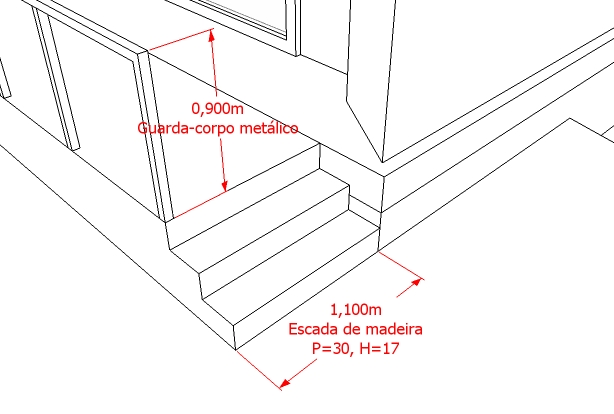
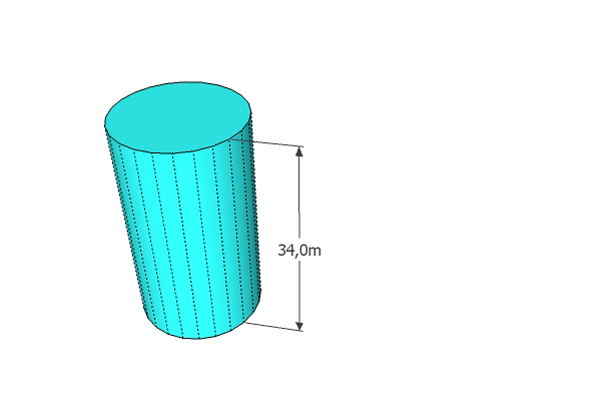
To dimension the height of a cylinder or a surface, enable Hidden geometry (Hidden geometry) view mode and click on the dotted edge.
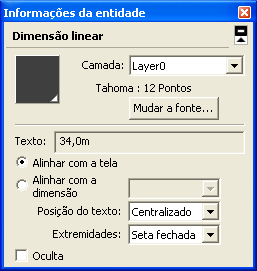
You can configure the text font, alignment, position, endpoint type, and color of the dimension using the Entity info (Entity info) window.
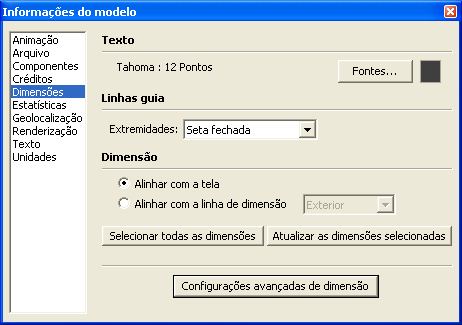
If you prefer, you can set these adjustments as a default style through the Model info (Model info) window, item Dimensions (Dimensions). Once configured, you can click the Select all dimensions (Select all dimensions) button and then the Update selected dimensions (Update selected dimensions) button to apply the adjustments to dimensions already created. The Select all dimensions button can be useful for deleting all dimensions or for moving them to a different layer.
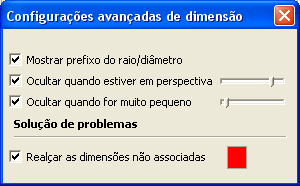
In the Expert dimension settings (Expert dimension settings) option you can adjust to hide the dimension when the model is in perspective or when it's too small.
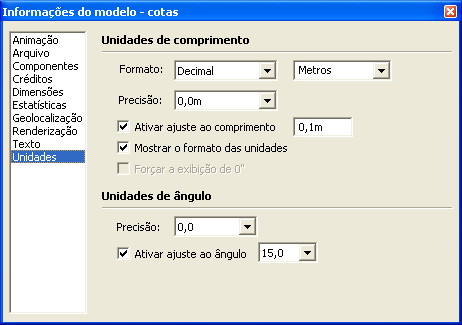
To hide the unit format on the dimension, open the Model info (Model info) window, item Units (Units) and uncheck the Display units format (Display units format) option. Also in this window, you can set how many decimal places will be shown on the dimension in the Precision (Precision) option.
Although you can dimension any object with SketchUp's Dimensions tool, for more complex drawings and more detailed layout it's recommended to use SketchUp LayOut.
Would you like to deepen your knowledge of modeling and organizing projects in SketchUp? Explore EBBIM’s Curso SketchUp Pro do Básico ao Avançado. The training covers modeling sites and buildings, components, materials and scenes, complementing the topic of this post.