How to Fix Problems With Image Insertion in SketchUp!
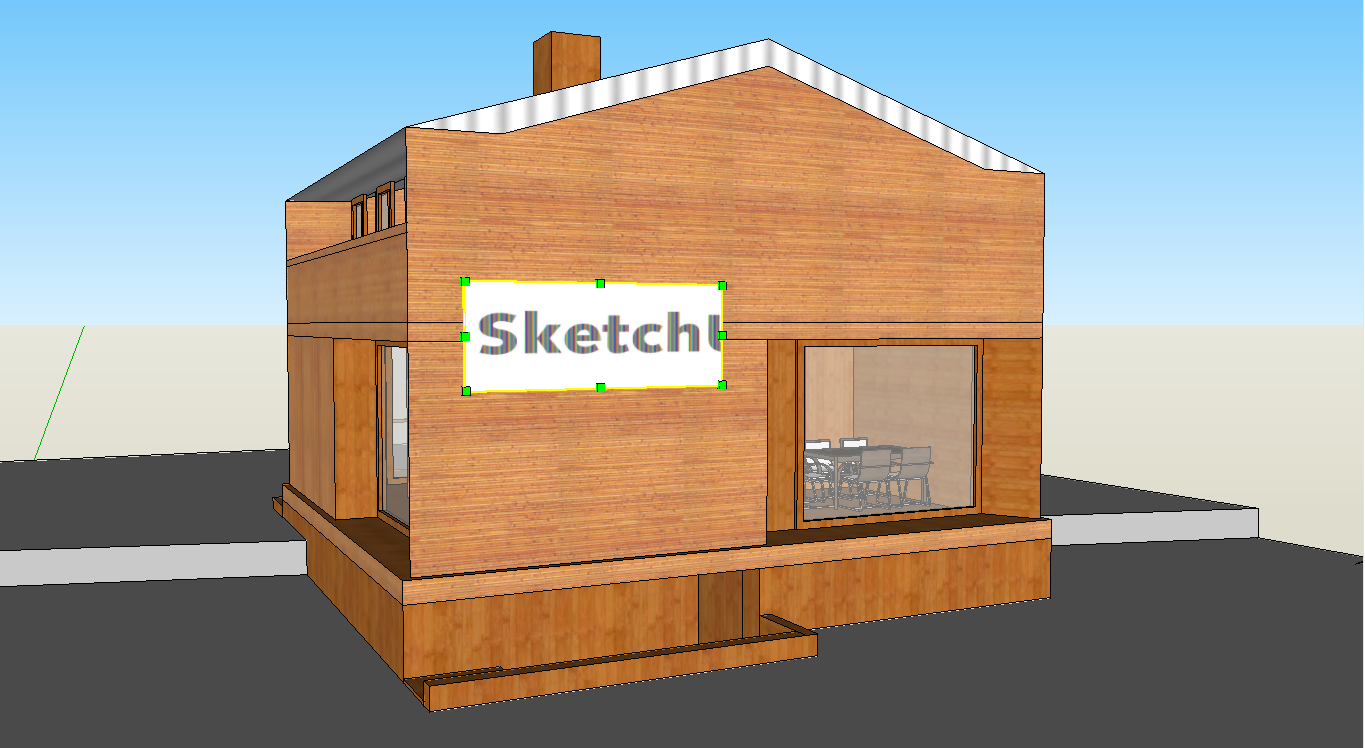
Have you ever inserted a .jpg file into SketchUp, either as a texture or as an image, and had it appear cropped with black-and-white bands, like the one in the image below?
The image was probably saved in CMYK mode (Cyan, Magenta, Yellow, Black), the standard color mode for printing. To fix this problem, you'll need to save your image in RGB mode (Red, Green, Blue), the standard color mode for light. Even though they look almost identical (as you can see below), an image saved in CMYK is not interpreted correctly by SketchUp.


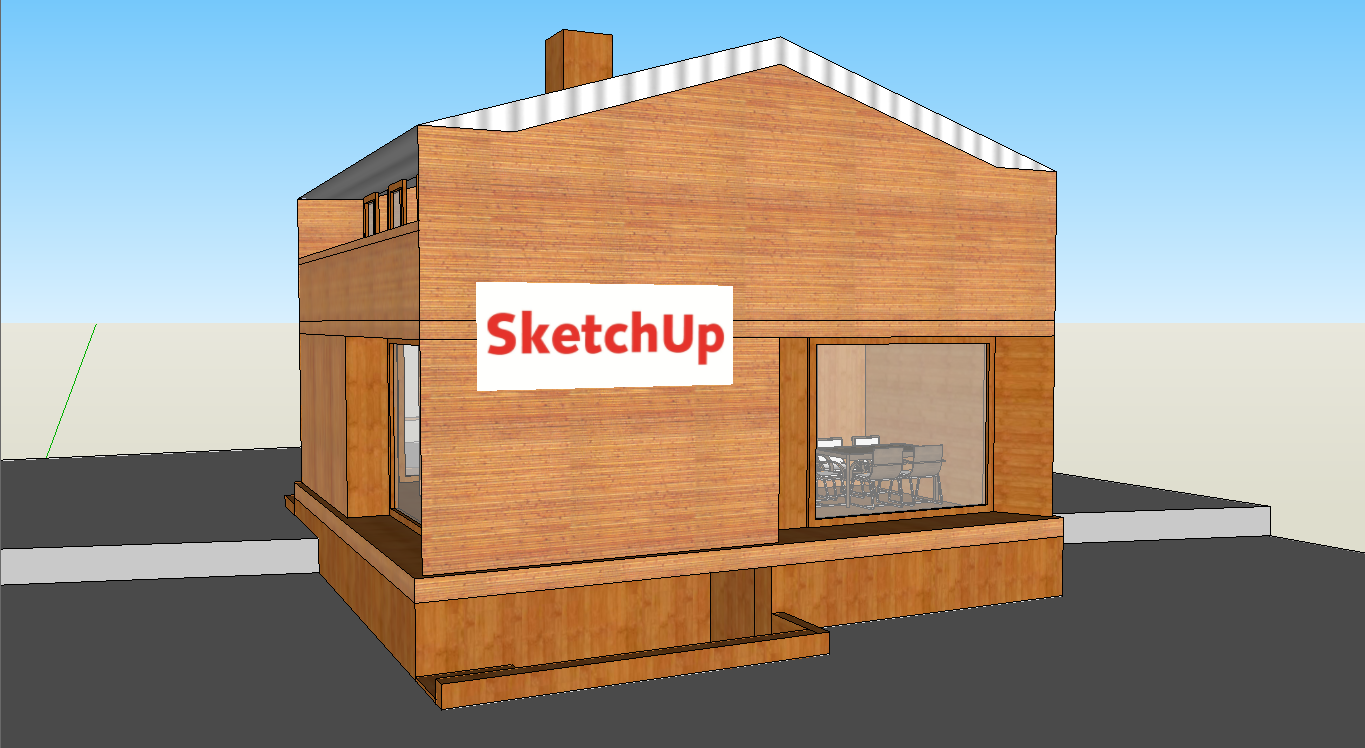
As our friend Ari suggests, the easiest way to fix this is to use Paint, Windows' image editing program. Just open the file and save it, since Paint automatically saves the file in RGB mode. See how an image applied in RGB works perfectly in SketchUp.
Would you like to deepen your knowledge of modeling and organizing projects in SketchUp? Explore EBBIM’s Curso SketchUp Pro do Básico ao Avançado. The training covers modeling sites and buildings, components, materials and scenes, complementing the topic of this post.