Importing SketchUp Files with Materials and Textures!
To kick off the blog, here's a tip for those who work with SketchUp and Vectorworks.
VectorWorks works well when importing .skp files, even recognizing walls and openings, but it does not recognize textures and materials.
The tip for exporting the textures applied to a SketchUp object is to use the .3ds. format. In this example, I'll use a Barcelona chair, downloaded directly from the 3D Warehouse without any editing.
- In SketchUp, go to the Arquivo/Exportar (File/Export) menu and choose .3ds.
Choose the settings as follows:
In the first option, choose Single Object if it's a simple object, since it won't come with SketchUp's group and component subdivisions. If it's a more complex model, choose Full Hierarchy, since it will then come with all of SketchUp's group and component divisions.
Open Vectorworks and import the 3ds file created in SketchUp. Set the options according to the window below.
Done! Your textured SketchUp model in Vectorworks.
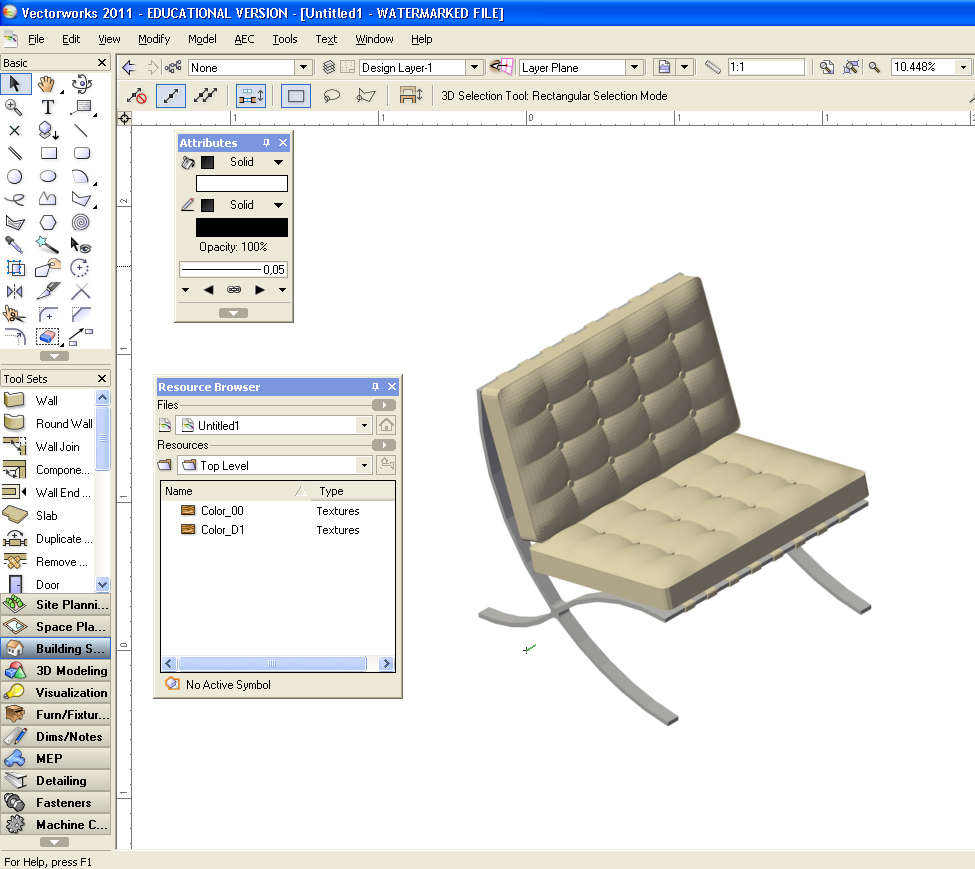
And notice that the SketchUp materials that are now in Vectorworks can be easily edited!
Fantastic for anyone who wants the variety of blocks that only the 3D Warehouse has, all within a powerful technical drawing program.
Would you like to deepen your knowledge of modeling and organizing projects in SketchUp? Explore EBBIM’s Curso SketchUp Pro do Básico ao Avançado. The training covers modeling sites and buildings, components, materials and scenes, complementing the topic of this post.