Other Wall Adjustments

how to move walls without undoing joins
Click the Selection (Selection) tool X.
In the mode bar, activate the Enable Connected Walls Mode
(Enable Connected Walls Mode) button, if it is not already active.
It is the last one on the bar (figure 1).

figure 1
Click on the wall to be moved and don't release the mouse button (figure 2).
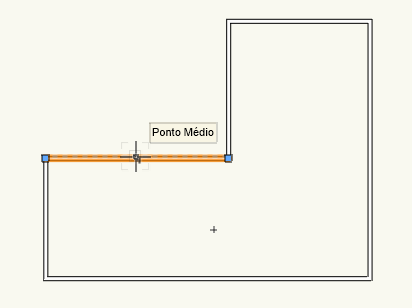
figure 2 – Wall being moved.
Press TAB, type the desired value in the data bar, and press Enter (figure 3).
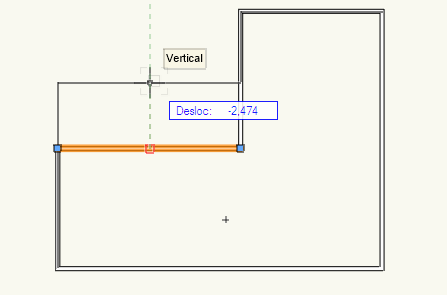
figure 3
Release the mouse button, and the wall will be moved (figure 4).
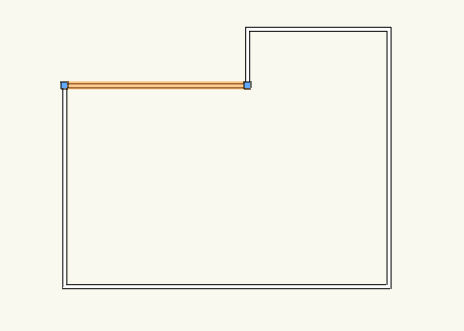
figure 4 – Result of the displacement.
the wall and the Object Info palette (Object Info) Ctrl+I
Some changes to walls can be made directly through the Object Info (Object Info) palette Ctrl+I (figure 1):
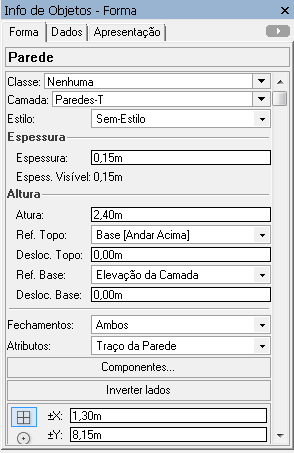
figure 1 –Object Info
See below some of the main ones:
Class (Class): Changes the wall's class.
Layer (Layer): Allows you to change the wall's layer.
Style (Style): Changes the wall's style.
Thickness (Thick): Wall thickness, always changed relative to its central axis.
Height (Height): Changes the wall's height.
Top Ref. (Top Bound): Choose the reference point for the automatic movement of the top of the wall.
Top Offset (Top Offset): This value is the difference between the value entered in Height (Height) and the value related to the option chosen in Top Ref. If you change the value of this box, it will automatically change the value of the Height (Height) field.
Bottom Ref. (Bot Bound): This is the reference point for the automatic movement of the base of the wall.
Bottom Offset (Bot Offset): Enter a value if you want to change the base elevation of the wall, relative to the Layer Elevation value of the active layer.Caps (Caps): Closes the start end, the end end, or both ends of the wall.
Attributes (Attr.): If your wall is not linked to any style and you have some cap enabled, this bar lets you choose whether the wall's cap lines use its own attributes or those of its outermost components.
Components... (Cavities...): Opens the components configuration menu.
Reverse Sides (Reverse Sides): Reverses the wall's creation direction.
Did you like this post?
It was based on the topic Walls, floors, columns, and roofs, Other wall adjustments,
which is part of the book Vectorworks step by step,
available in print or e-book.
For more information or to purchase the book,
visit the website www.livrovectorworks.com.br
Would you like to deepen your knowledge of project modeling and documentation in Revit? Explore EBBIM’s Curso Revit. The training covers building elements, families, sites, materials, quantities and drawing sheets, complementing the topic of this post.