Parametric Objects: Stair
In Vectorworks, it's possible to create parametric stairs.
A very easy way to generate this stair is by using the Stair (Stair) tool.
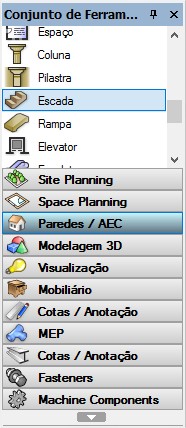
Go to the Tool Set
And click Stair Settings.

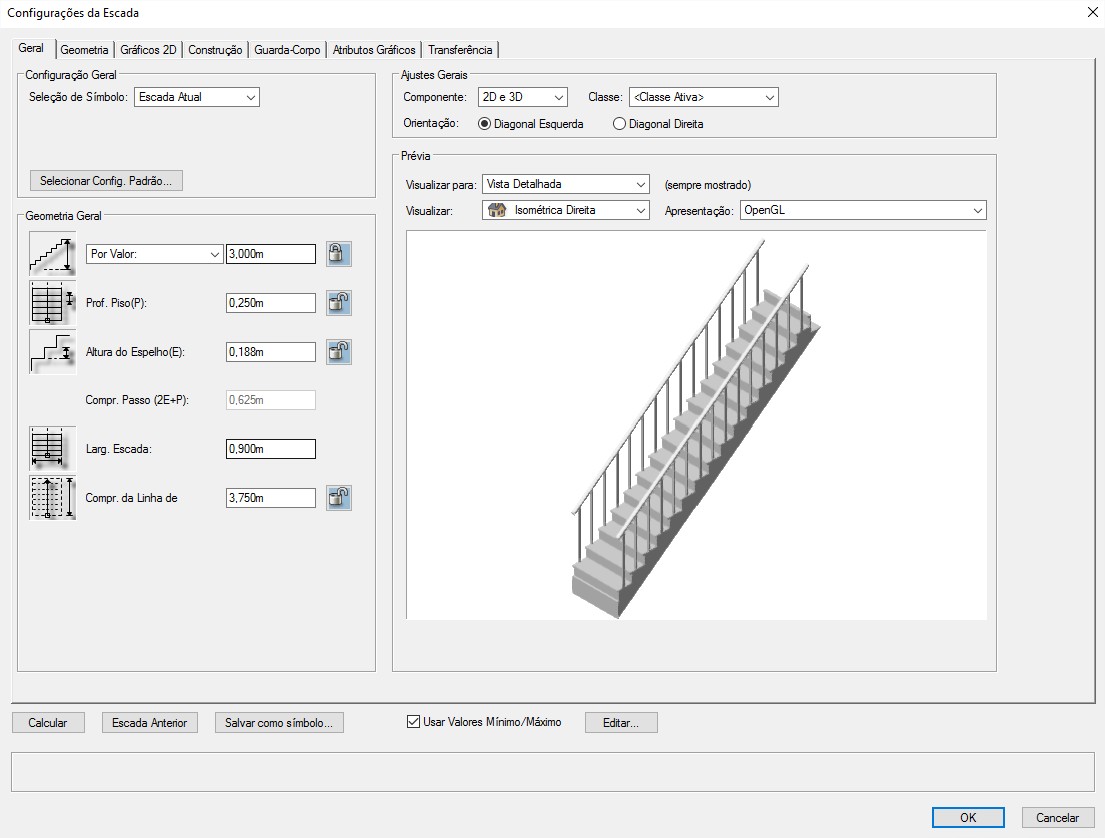
In the window that opens, notice there will be more than one tab to configure.
In the General tab, configure the stair's general information:
General Configuration:
You can select the stair type using the Symbol Selection or Select Standard Config... options.
General Geometry:
Set the vertical rise covered by the stair using the By Value or By Layer Elevation options. Choose the Tread Depth (P), the Riser Height (E), the Stair Width and the Walk Line Length.
General Settings:
Choose whether the stair to be created will be a 2D, 3D, or 2D and 3D Component. Set the Class and the Orientation.
Preview:
Choose how you'll view the model (View and Rendering type).
In the Geometry tab, configure the stair's general information:
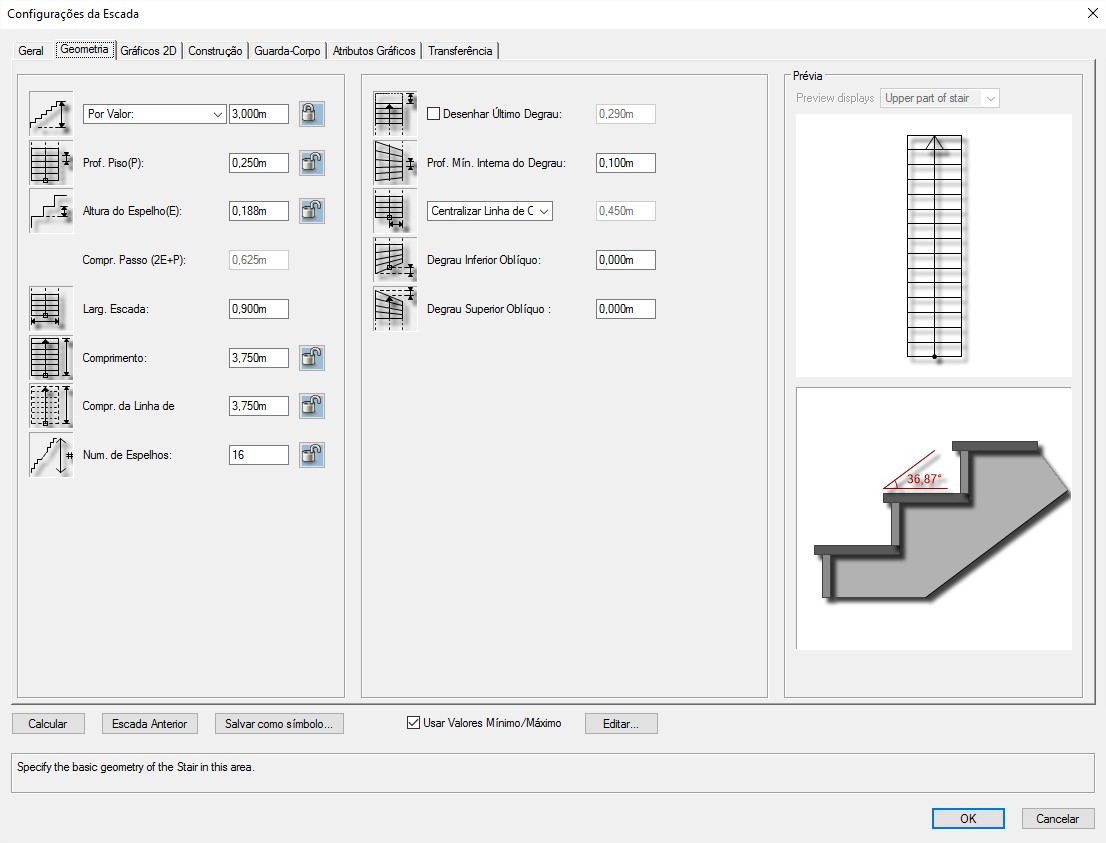
Depending on the type of stair chosen, different configuration options will appear.
In this tab, you can configure each part of the stair to be built in more detail.
In the 2D Graphics tab, configure the stair's general information:
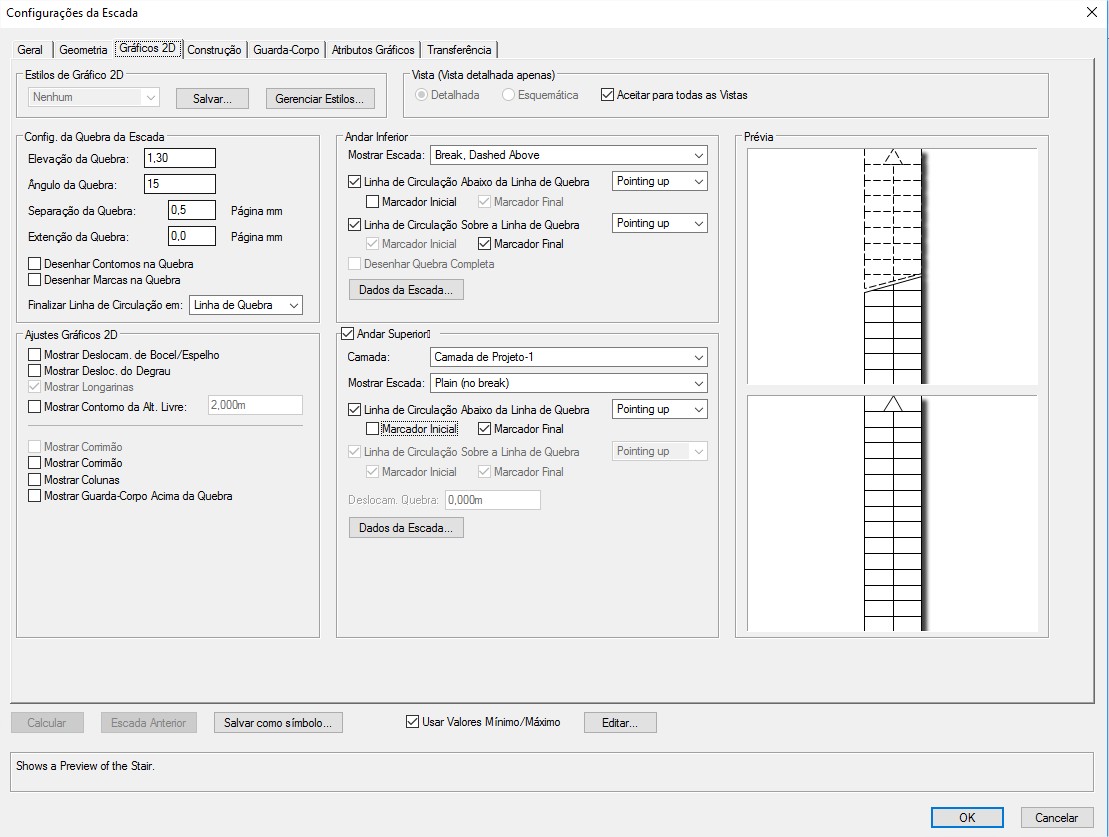
2D Graphic Styles:
Click to choose which 2D graphic style will be applied to the stair.
View (Detailed View only):
Choose the level of 2D detail the stair will have, at detail scales or at all scales.
Stair Break Configuration:
Configure the 2D stair break options.
2D Graphic Settings:
Contains other 2D visibility configuration options for the stair.
Lower Floor:
Set the display mode at the lower floor (start of the stair).
Upper Floor:
Set the display mode at the upper floor (end of the stair). This option can be turned on or off as needed.
In the Construction tab, configure the stair's general information:
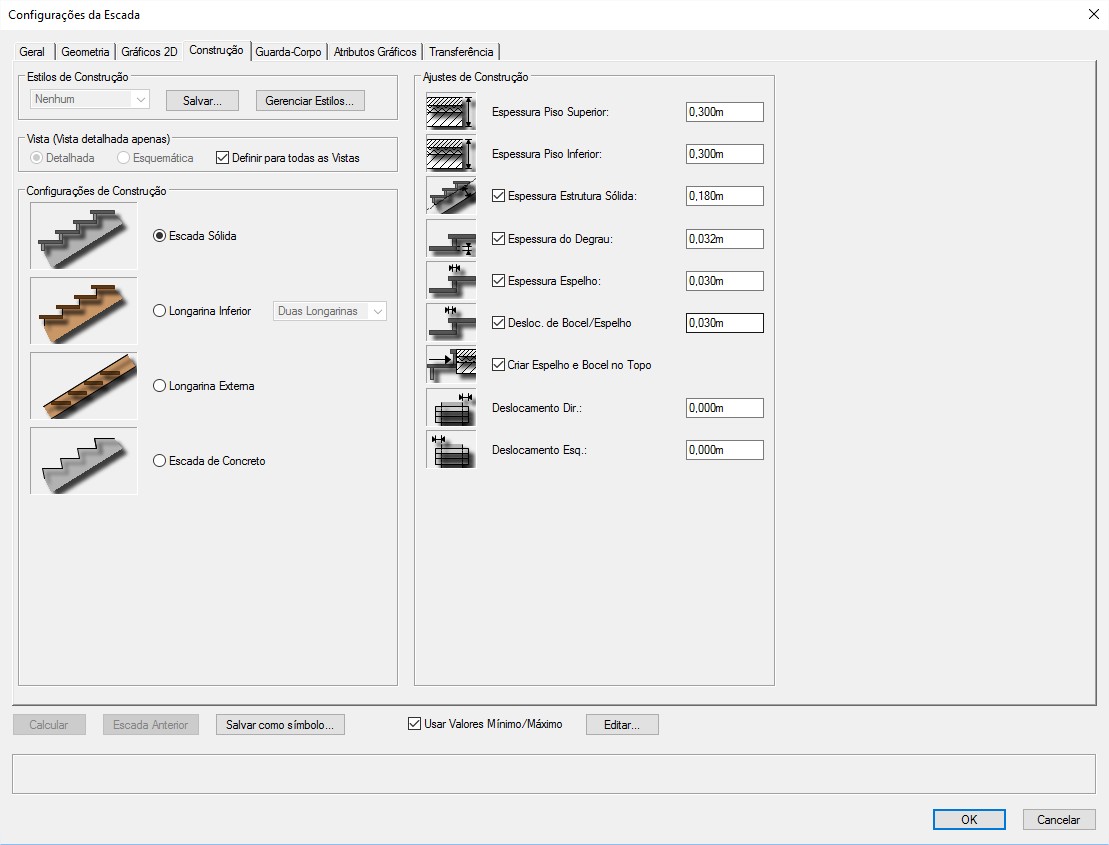
Construction Styles:
Click to choose the construction style that will be applied to the stair.
View (Detailed View only):
Choose the level of detail the stair will have at detail scales or at all scales.
Construction Settings:
Choose the overall construction option for the entire stair.
Construction Adjustments:
Configure the construction details of the structure, treads, and other elements of the stair.
In the Railing tab, configure the stair's general information:
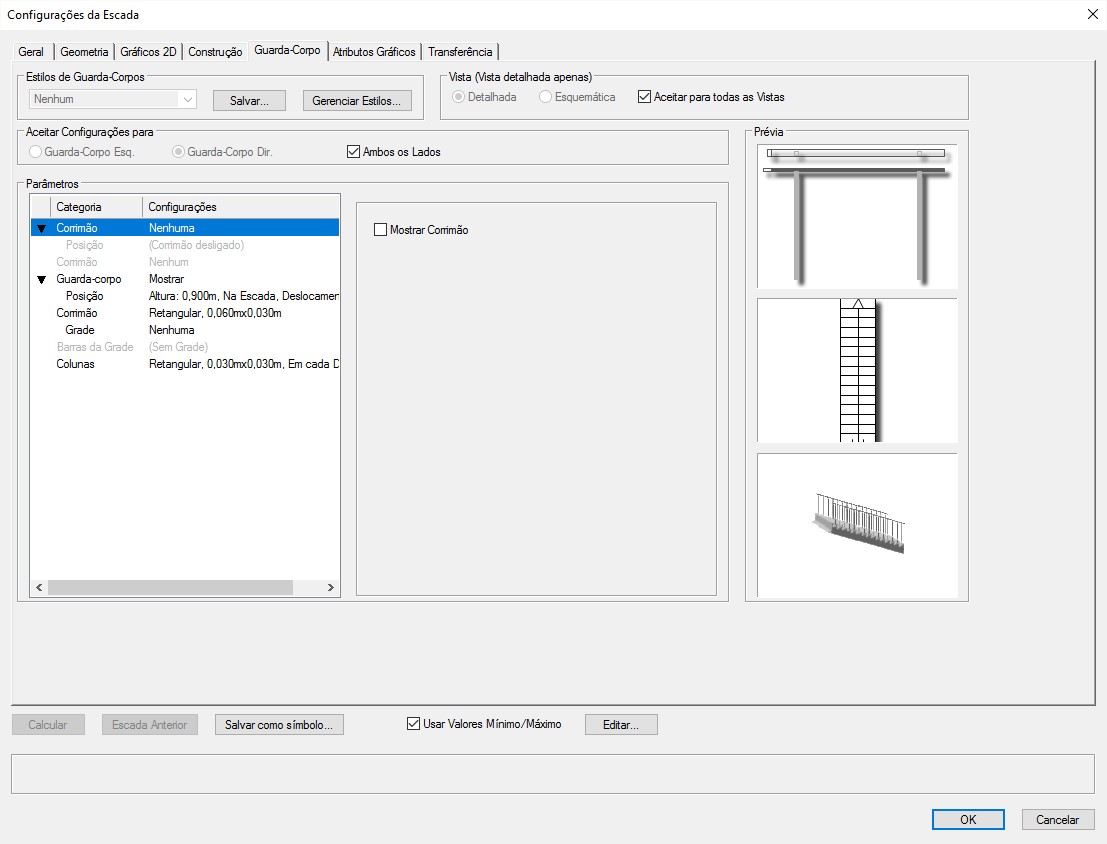
Railing Styles:
Click to choose the construction style that will be applied to the stair.
View (Detailed View only):
Choose the level of detail the stair will have at detail scales or at all scales.
Accept Settings for:
Turns the left or right side of the handrail on and off.
Parameters:
Adjust the specific parameters of the handrails.
In the Graphic Attributes tab, configure the stair's general information:
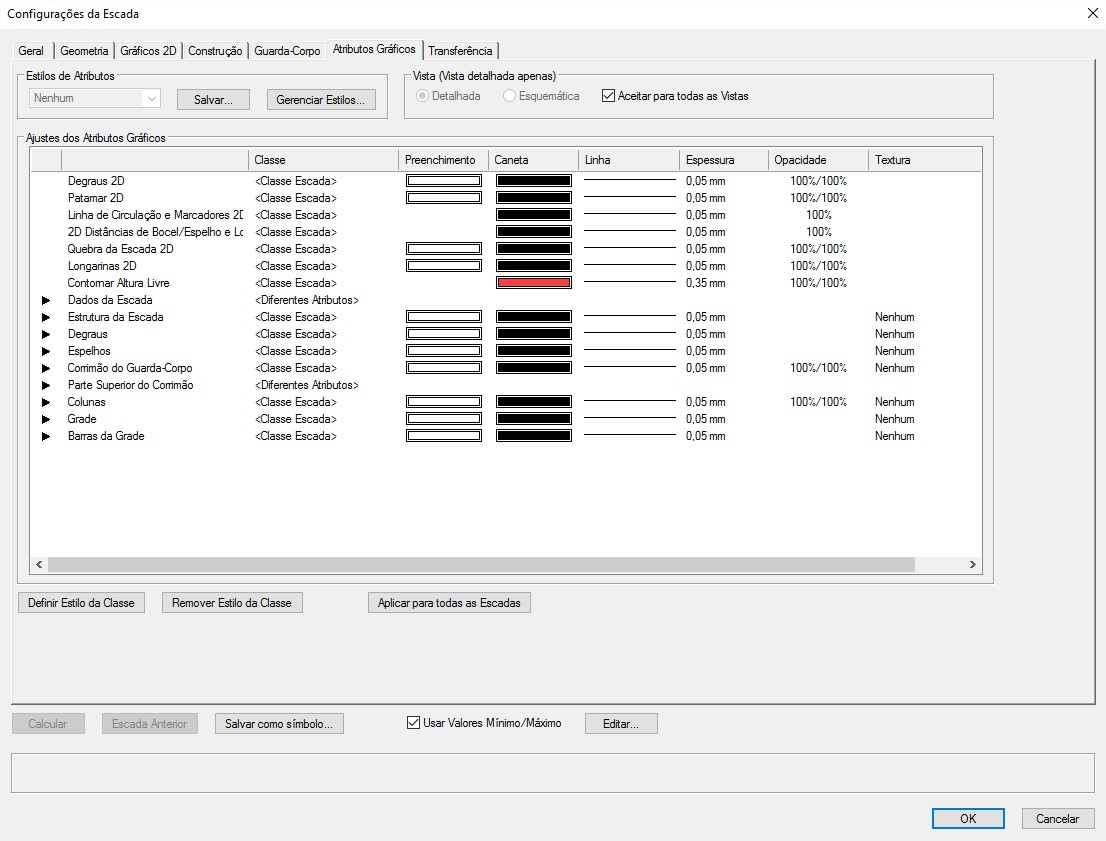
Attribute Styles:
Click to choose the construction style that will be applied to the stair.
View (Detailed View only):
Choose the level of detail the stair will have at detail scales or at all scales.
Graphic Attribute Settings:
Configures the classes and graphic attributes of the stair's components.