Model a Simple Circular Table with Entity Info
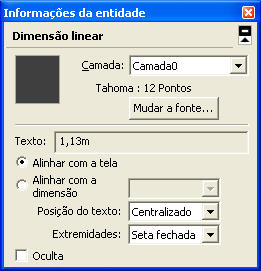
There are tools that are essential for improving editing performance in SketchUp. The Entity Info window is one of them. When you select an object, the Entity Info window shows certain properties. Some of them can be changed, such as edge length, component name, dimension font, among others.
Besides editing an object through the Entity Info window, you can also model with it. In the example below, you'll see how to turn a cylinder into a table. To open the tool, go to the Window/Entity Info menu.
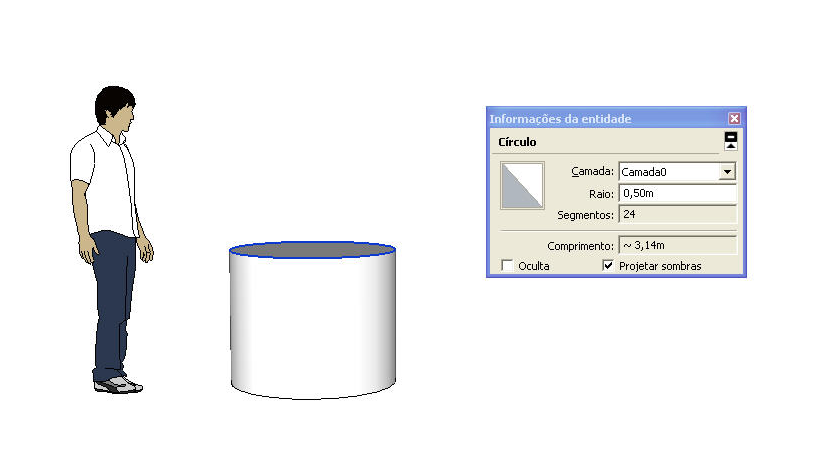
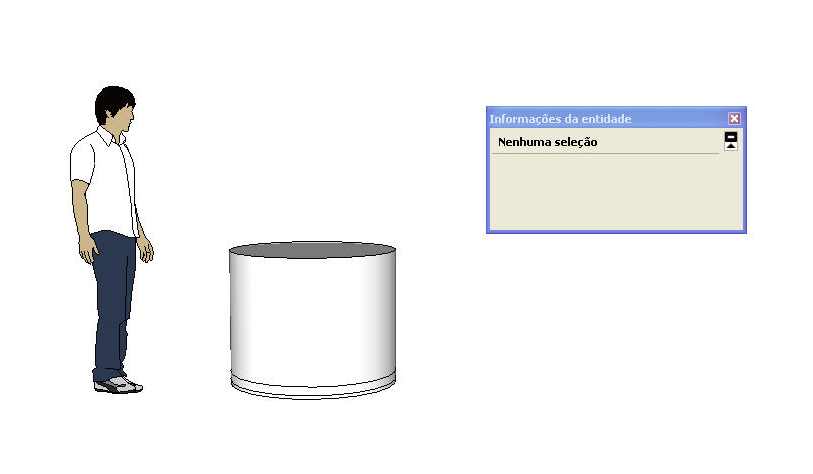
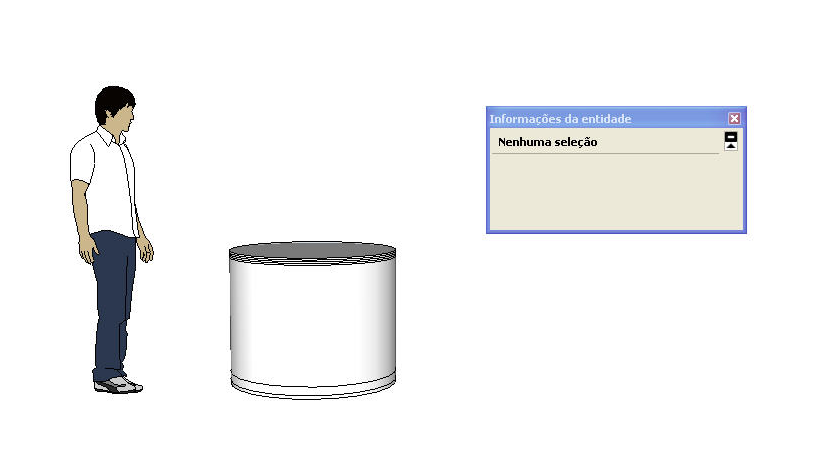
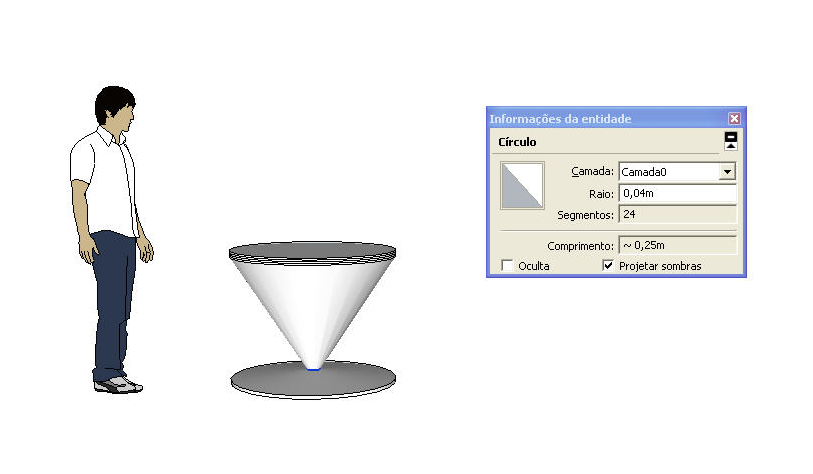
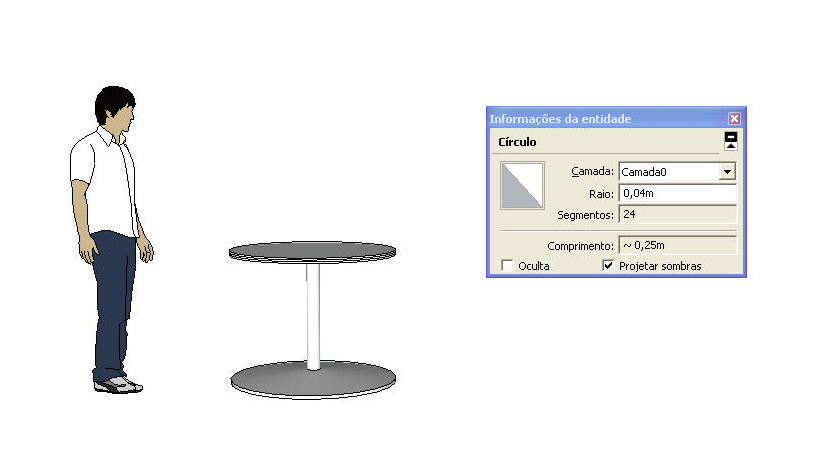
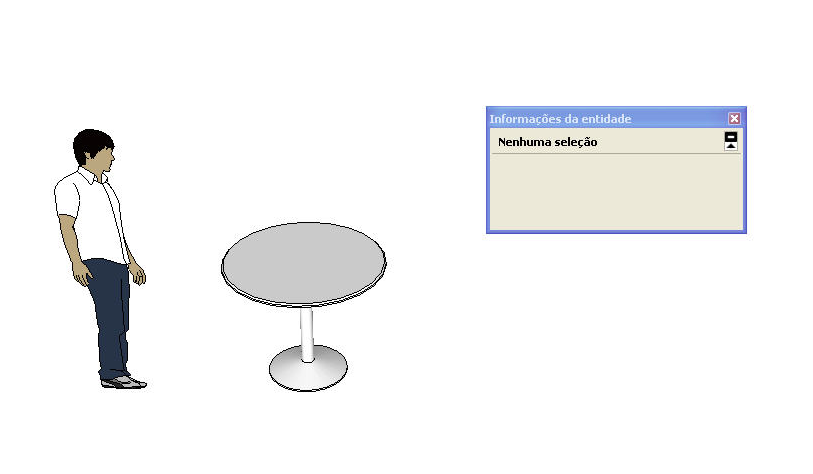
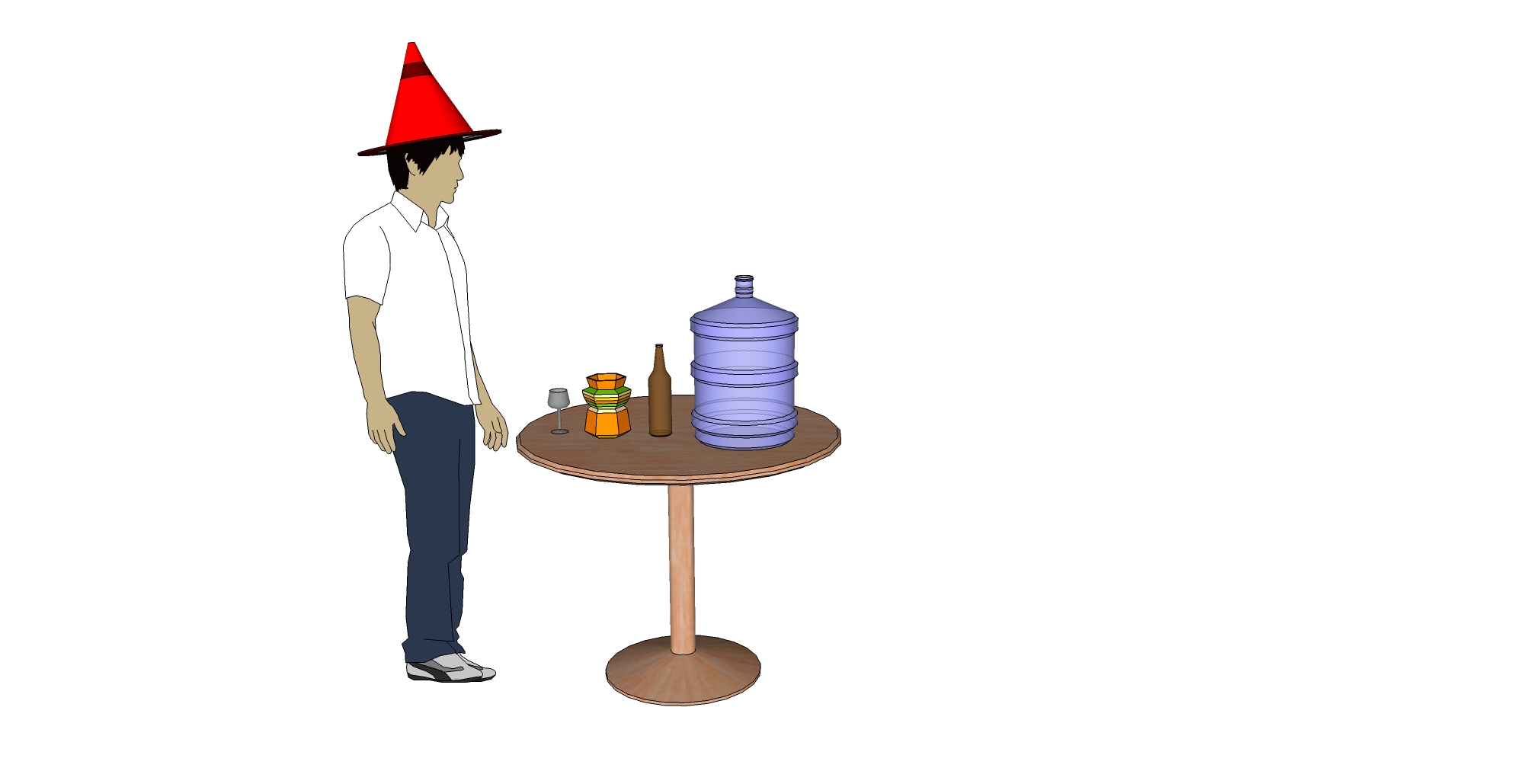
With this feature of the Entity Info window, you can also create a vase, a pitcher, a goblet, and other lathed, solid-of-revolution objects. Like the objects below.
Would you like to deepen your knowledge of modeling and organizing projects in SketchUp? Explore EBBIM’s Curso SketchUp Pro do Básico ao Avançado. The training covers modeling sites and buildings, components, materials and scenes, complementing the topic of this post.