Modeling with Hidden Geometry
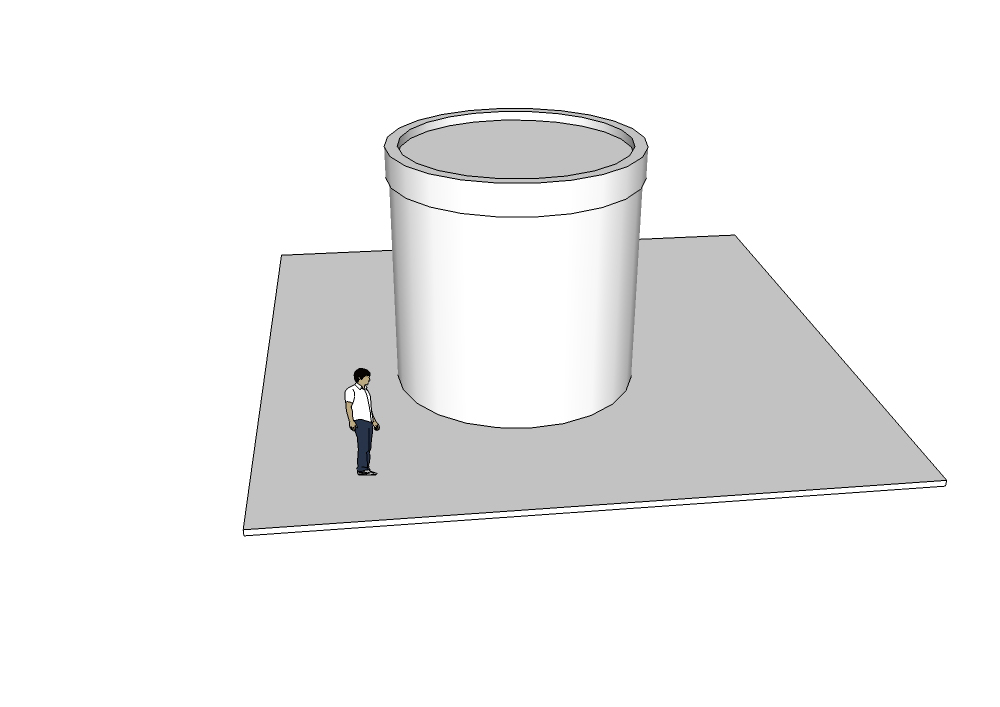
Anyone who uses SketchUp already knows that the Push/Pull and Offset tools are essential for modeling. But when we try to use them on a Surface, a prohibited sign appears next to the tool's icon, warning that the tool cannot be used on curved or smoothed surfaces.
There are already plugins that allow you to work with curved surfaces, offering complex modeling tools, such as Joint Push/Pull. But the simplest solution for modeling on surfaces is to enable Hidden Geometry. With this option turned on, SketchUp "breaks down" the surface into faces, allowing the use of the Push/Pull and Offset tools. To recompose the faces back into a surface, simply disable Hidden Geometry.
In the example below, a cylinder is a hypothetical information center. With hidden geometry visible, Offset was used to mark out the window openings, then Push/Pull was used to create the openings.
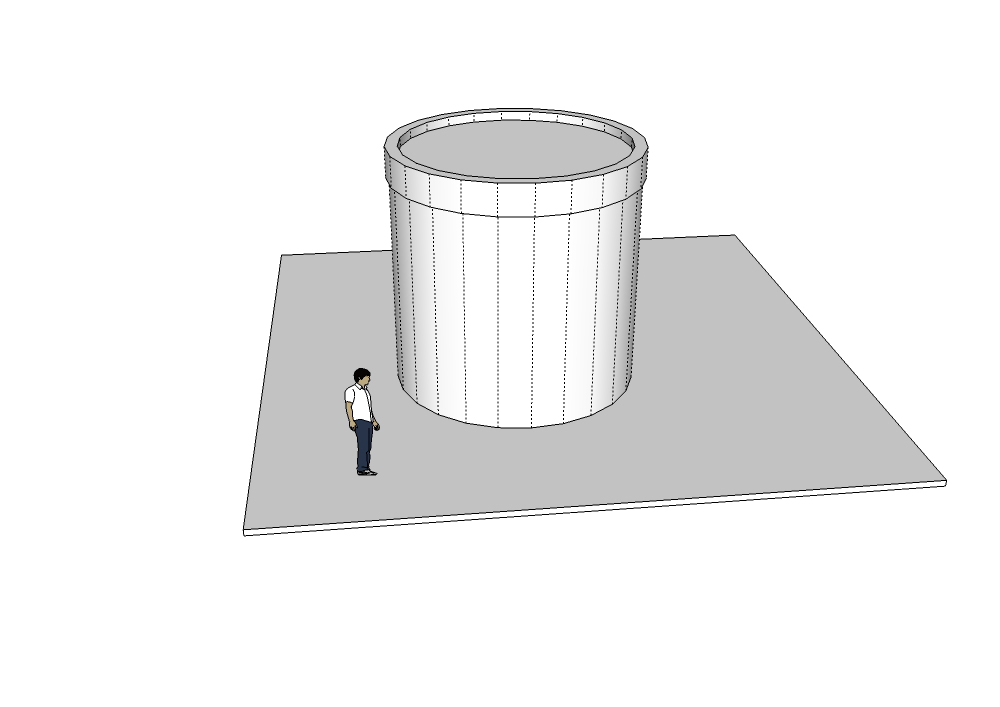
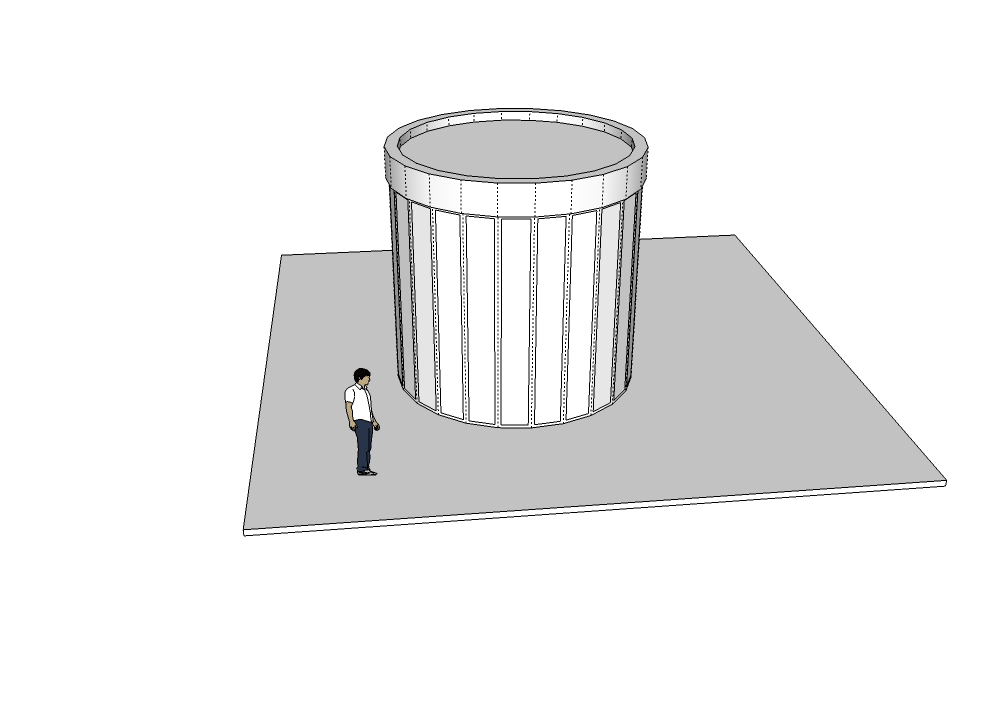
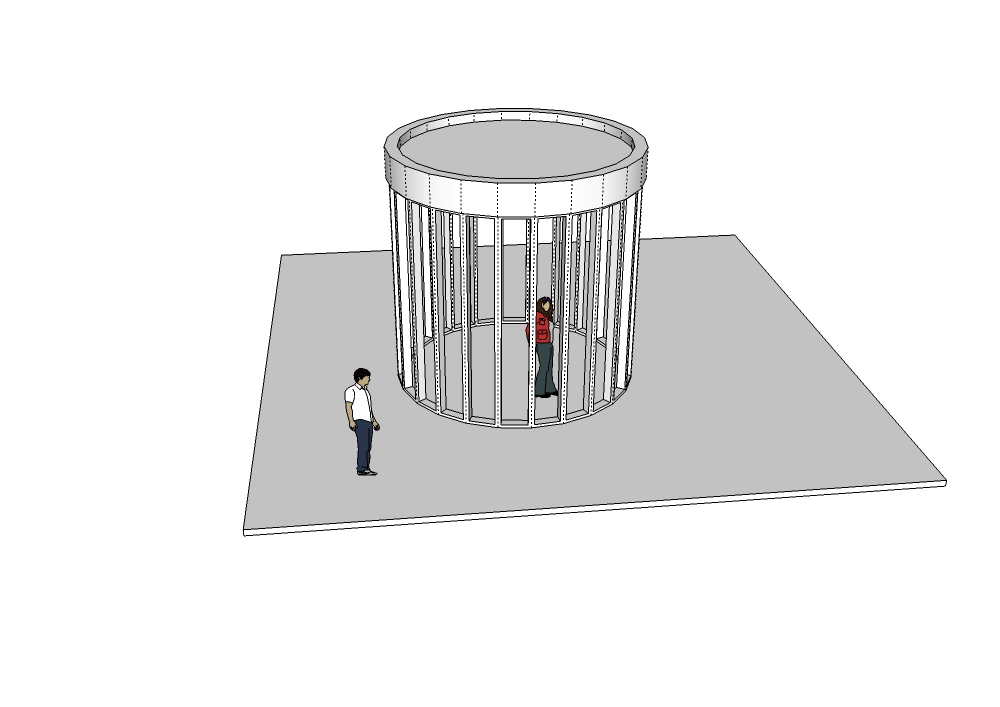
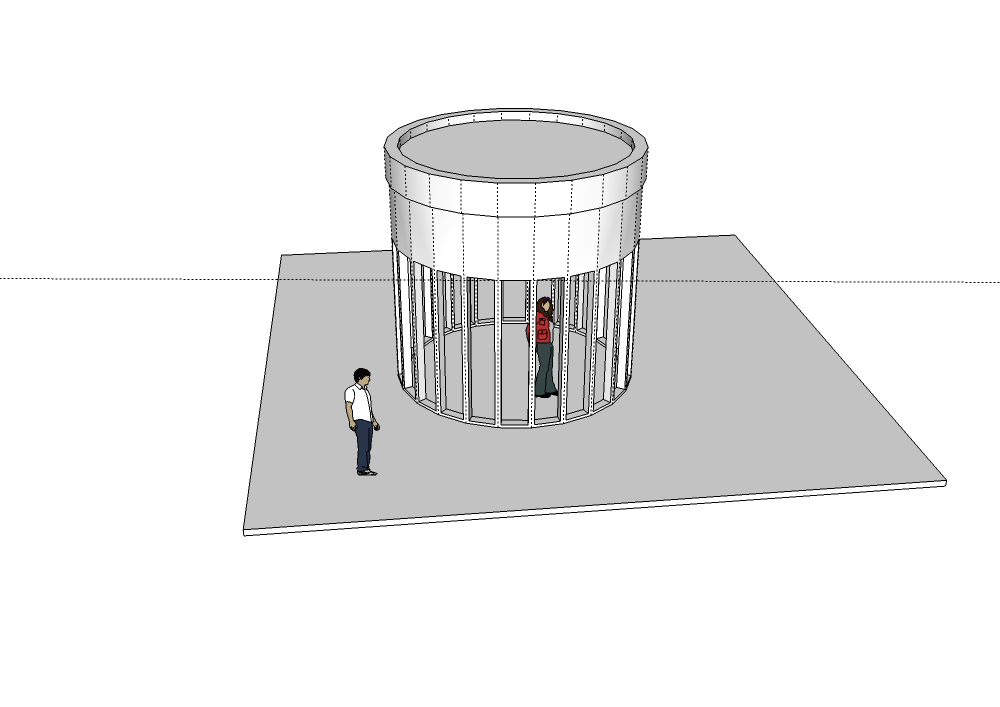
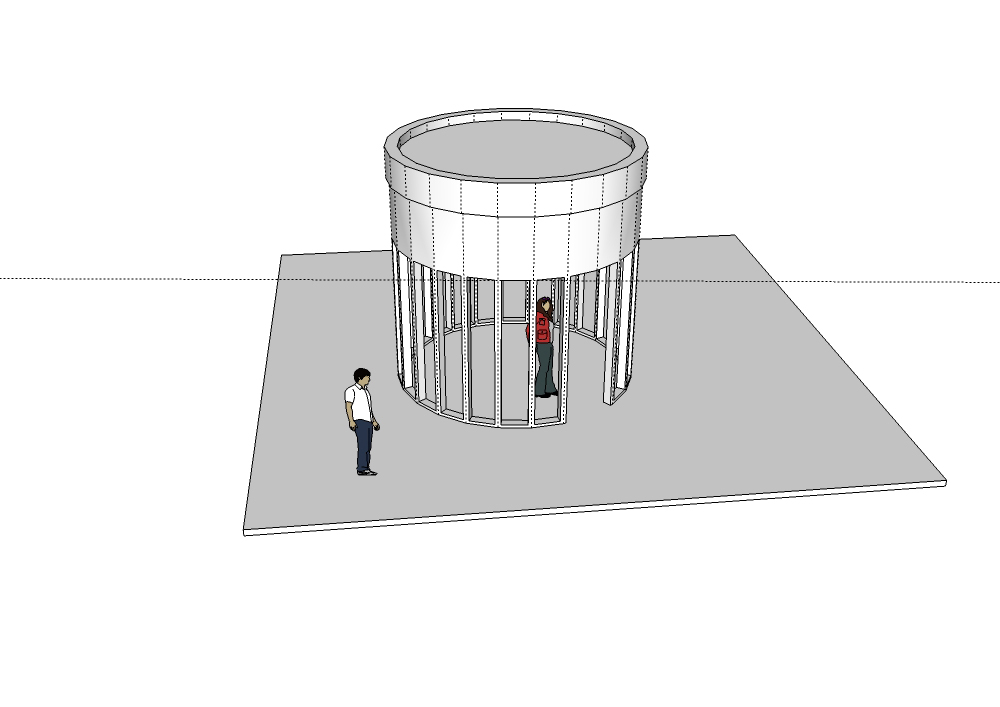
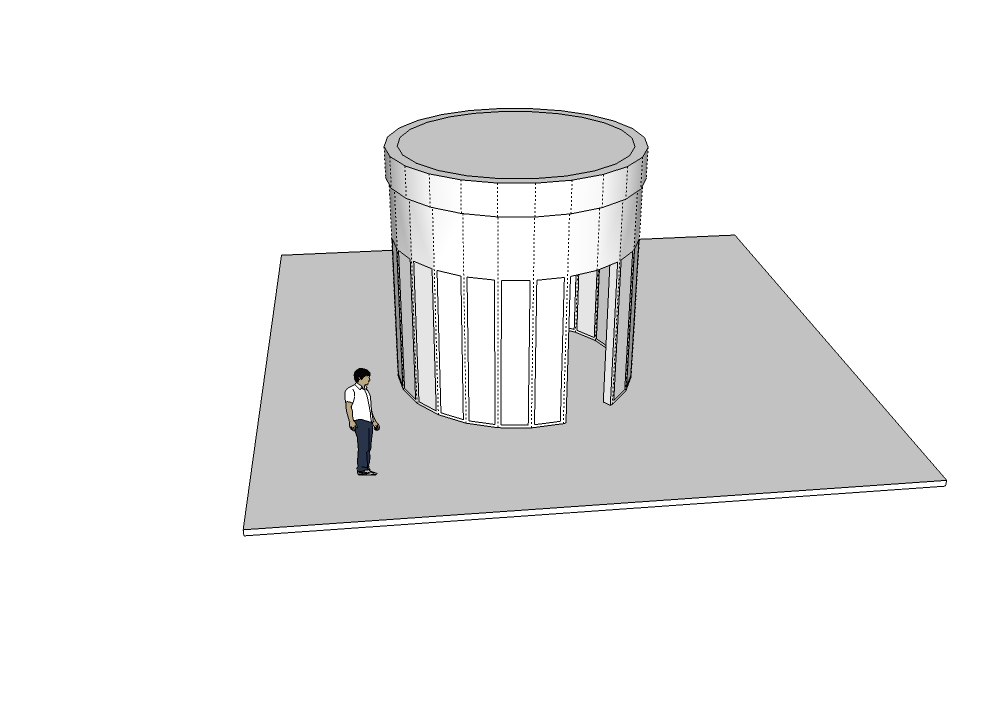
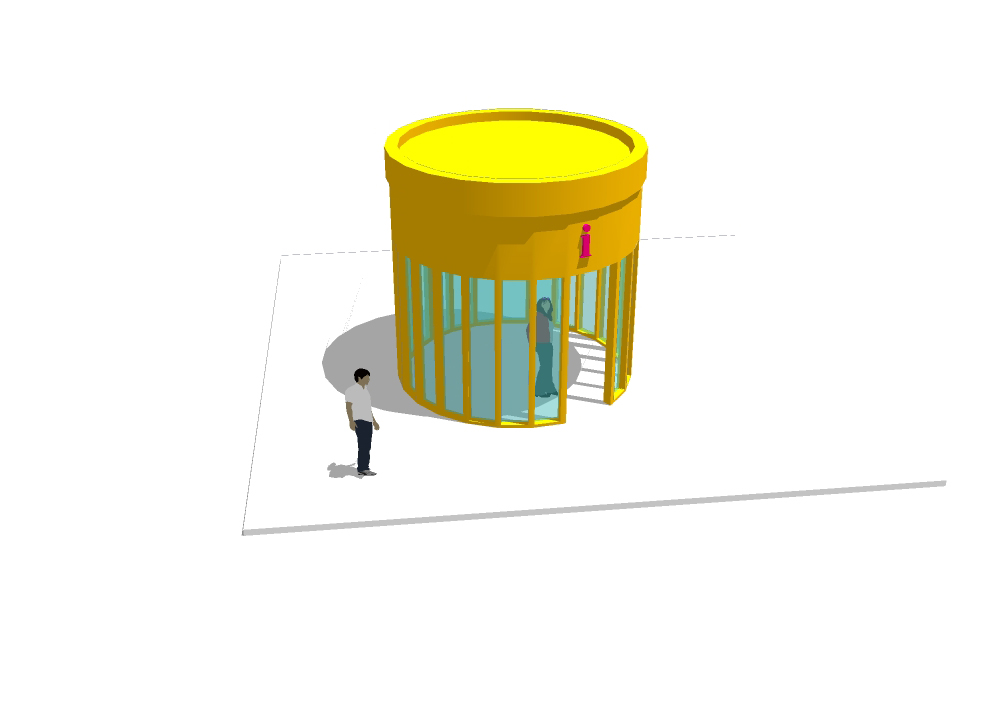
To turn the hidden geometry display on and off, go to the View/Hidden Geometry menu.
You can also use the Soften Edges window to break the surfaces down into faces, and vice versa, but viewing hidden geometry is a quicker procedure.
Would you like to deepen your knowledge of modeling and organizing projects in SketchUp? Explore EBBIM’s Curso SketchUp Pro do Básico ao Avançado. The training covers modeling sites and buildings, components, materials and scenes, complementing the topic of this post.
Historical references: the links below lead to copies of the original pages preserved by the Internet Archive. Downloads, forms and registration on these copies may not work; these references are retained as a record of the publication period.
- Plugin Joint Push Pull | Dicas de SketchUp — 22/10/2014