Live Components: SketchUp 2021's new smart objects!
The 2021 version of SketchUp brought many interesting new features. Among them, a few stand out: a new tool called PreDesign, which provides guidance on design best practices based on your location, significant improvements to the Tags panel (formerly the Layers panel), and the new smart objects called Live Components. In this post we'll focus on these new SketchUp objects; in other posts, we'll cover PreDesign and the new Tags window.
Live Components is the name given to the new class of parametric objects that SketchUp has included since the 2021 version. In the words of the program's development team, Live Components are "parametric objects... programmed with modeling logic that controls their geometry, ...configurable objects that redraw themselves in real time". You can search for and download Live Components from the 3D Warehouse search window, the object catalog for SketchUp.
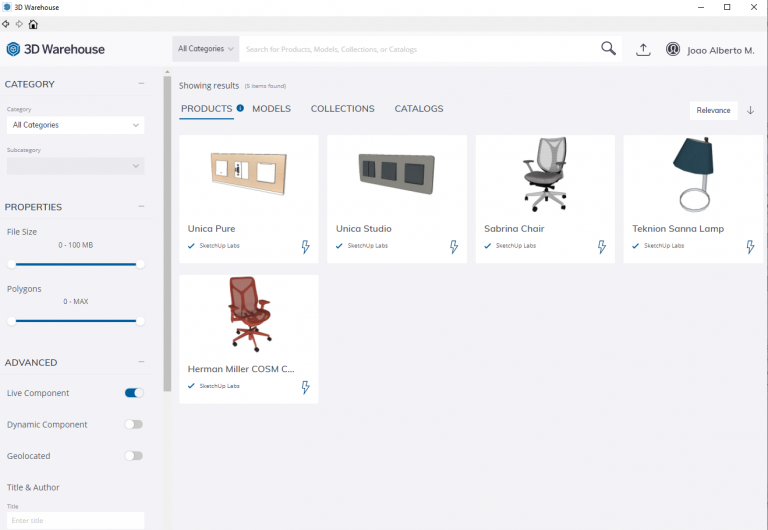
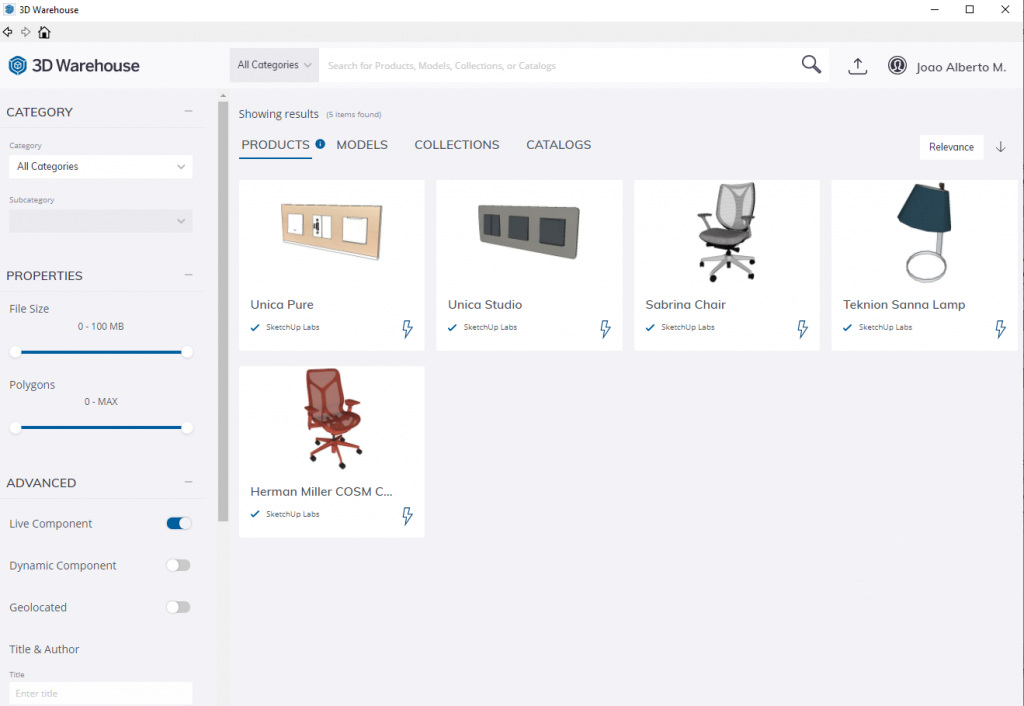
When you open the 3D Warehouse window, click the magnifying glass that appears to the right of the search field; then click Advanced, in the lower-left corner of the window, and then click Live Component to filter only this class of components. Components are identified by a lightning-bolt icon located in the lower-right corner of each component. You should get a result similar to the one shown in Figure 1.
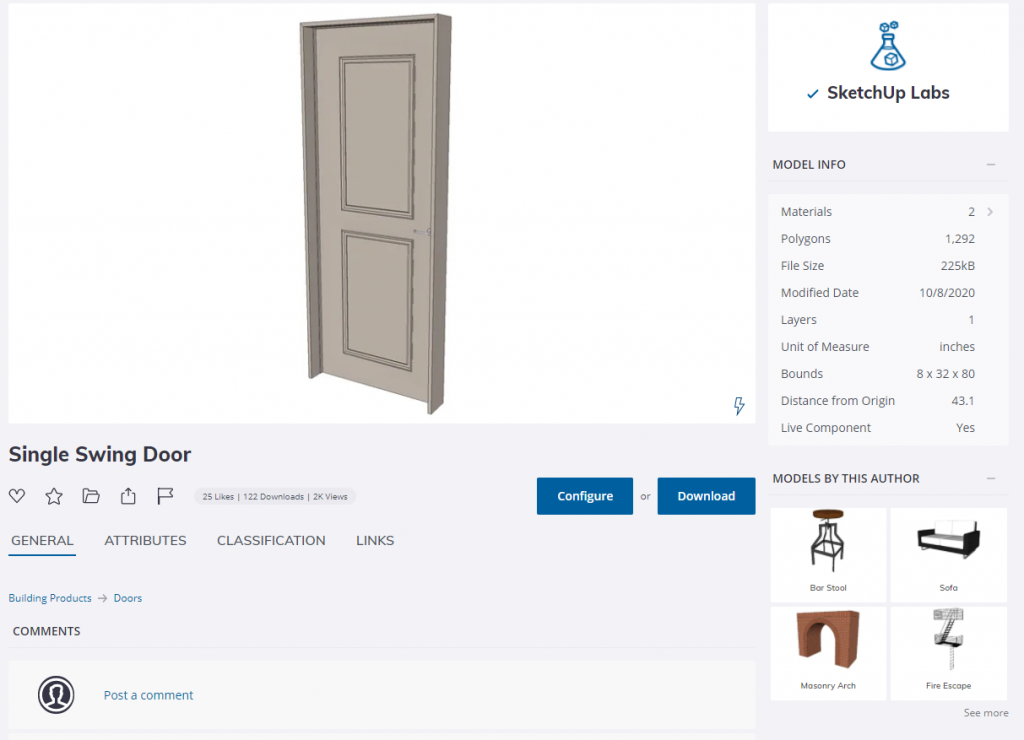
Next, you can click PRODUCTS, MODELS, COLLECTIONS, or CATALOGS to see the options currently offered by the SketchUp team through its initiative called SketchUp Labs. Once you choose an object, a new configuration window opens. Here you can configure the object before downloading it (Configure button) or download the object into your SketchUp file and configure it afterward (Download button), as shown in Figure 2, which displays the Single Swing Door object.
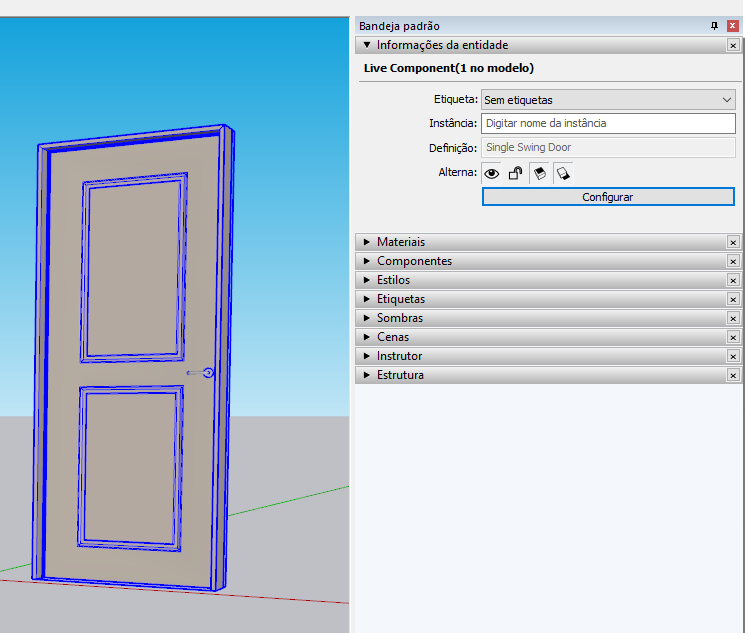
For this post, we chose to download the component. Once the component is inserted, you can notice that its behavior in SketchUp is somewhat different from its older siblings, namely groups, components, and dynamic components. For now, it's possible to assign a tag and give an instance name to a Live Component. It is not possible, at least at launch, to classify a Live Component in IFC (or other systems), and it's also not possible to change its Definition (or Type) name through the Entity Info panel, as shown in Figure 3.
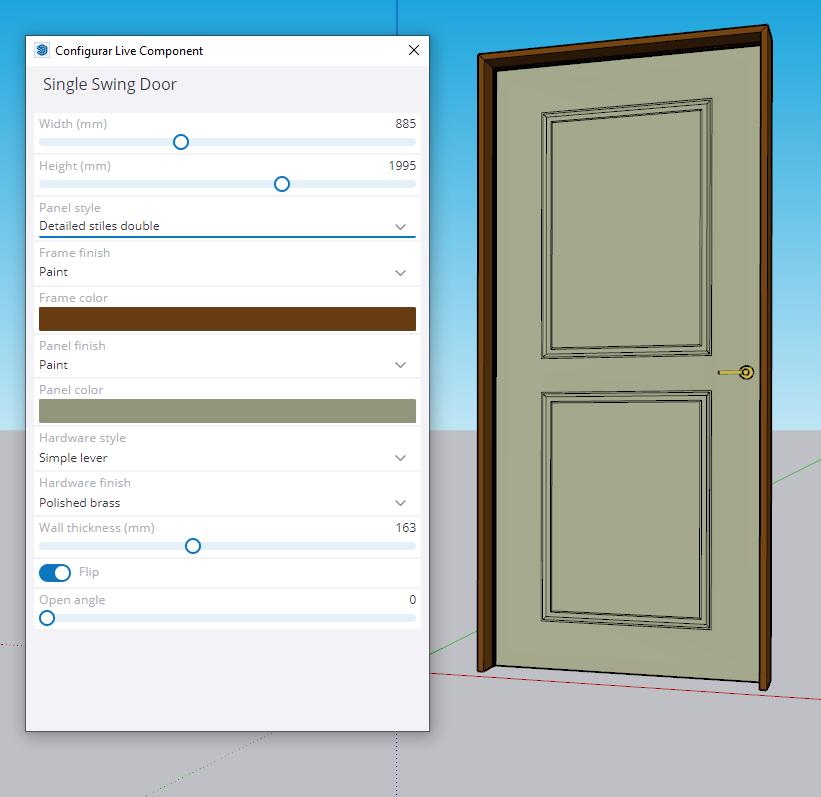
The power of a Live Component is revealed as soon as you click the Configure button, or double-click the object. This gives you access to the object's configuration window. Information in this window may take a moment to appear, since it's loaded in real time from Trimble's servers, meaning you need to be connected to the internet. From there, you can use the sliders and other controls to configure the object however you like, as shown in Figure 4.
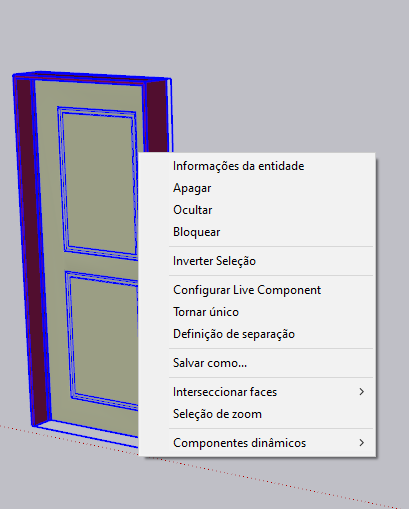
To create variations, that is, different door types, you need to duplicate the object, right-click one of the copies, and choose the Make Unique option. To rename the type (which always inherits the same name as the previous one, plus #n), use the Components panel. If you want to "explode" the object, turning it into a regular component, select it and, with the right mouse button, choose the Explode option, as shown in Figure 5.
It's clear, then, that Live Components are very interesting and flexible objects that will help us a great deal in our everyday tasks. For now, SketchUp users still can't create their own Live Components; this is a feature under development by the SketchUp Labs team, as reported on the forum created specifically for this topic. The SketchUp Labs team says more updates are planned for Live Components, so it's well worth keeping an eye out to take advantage of new features as they arrive!
Would you like to deepen your knowledge of using SketchUp in BIM workflows? Explore EBBIM’s Curso SketchUp Pro para BIM. The training covers model structure, component properties, IFC exchange and LayOut documentation, complementing the topic of this post.