Wall Joins and Breaks

Vectorworks has very practical tools for building 3D architecture objects. Walls, for example, are created with height and thickness and automatically adjust when joined or separated.
how to quickly join two walls
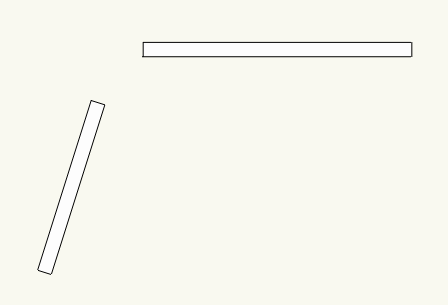
Use the Selection (Selection) tool X to select two walls that will be joined (figure 1).
Go to the menu Modify/Join/Join (Modify/Join/Join) Ctrl+J (figure 2) and notice that the walls have been connected (figure 3) .
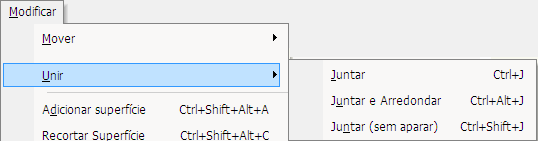
figure 2 – Modify menu.
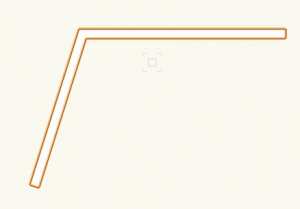
figure 3– Joined walls
how to join walls in a T, L, or X shape
In the Walls (Walls) palette, click the Wall Join (Wall Join) tool.
In the mode bar, click the most appropriate join mode (T, L, or X). In the images for these items, you'll see a T join. Also in the mode bar, next to it, choose whether the join will be made without a cap or with a cap (figure 1).

figure 1 – Mode bar
Click on any point of the first wall to be connected. You don't need to click on the end of the wall.
Click on the second wall to complete the join. If you chose the join with cap, it will be made from the first wall clicked to the second wall (figure 2).
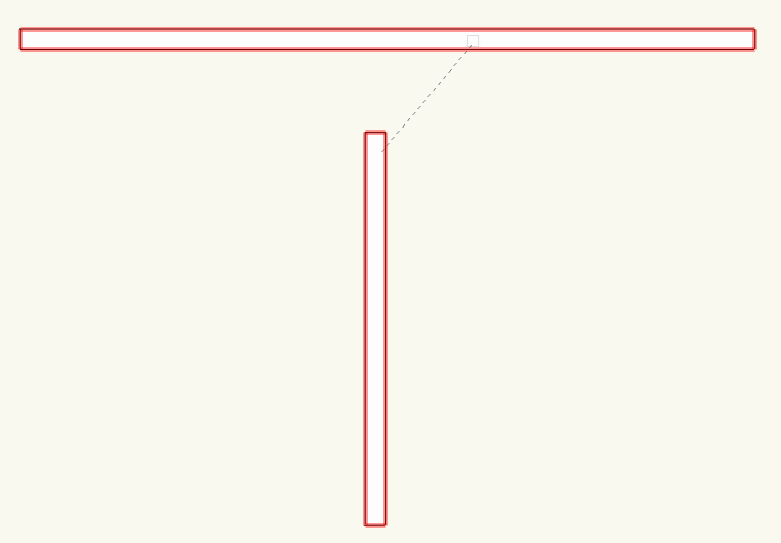
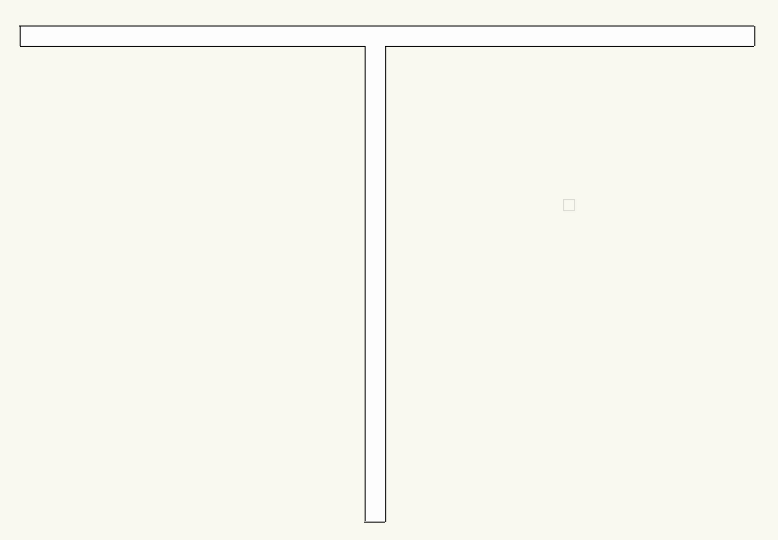
figure 2 – Wall join.
Did you like this post?
It was based on the topic Walls, floors, columns, and roofs, Wall joins and breaks,
which is part of the book Vectorworks step by step,
available in print or e-book.
For more information or to purchase the book,
visit the website www.livrovectorworks.com.br