How to change line dashing, colors, and thicknesses in SketchUp Pro and SketchUp LayOut?
One of the new features in Trimble's latest 2020 update for SketchUp Pro and LayOut was the ability to edit the appearance of lines (thicknesses, colors, and dash styles) in SketchUp LayOut viewports. Before that, in the 2019 SketchUp Pro update, Trimble introduced the feature for changing line dash styles.
These implementations allowed users to significantly improve the graphic representation of their projects, but, at first glance, it can be a bit tricky to understand how to make the best use of the recent line-editing features. This post aims to explain what can be done with line styles in SketchUp Pro and LayOut.
How to change the appearance of lines in SketchUp Pro
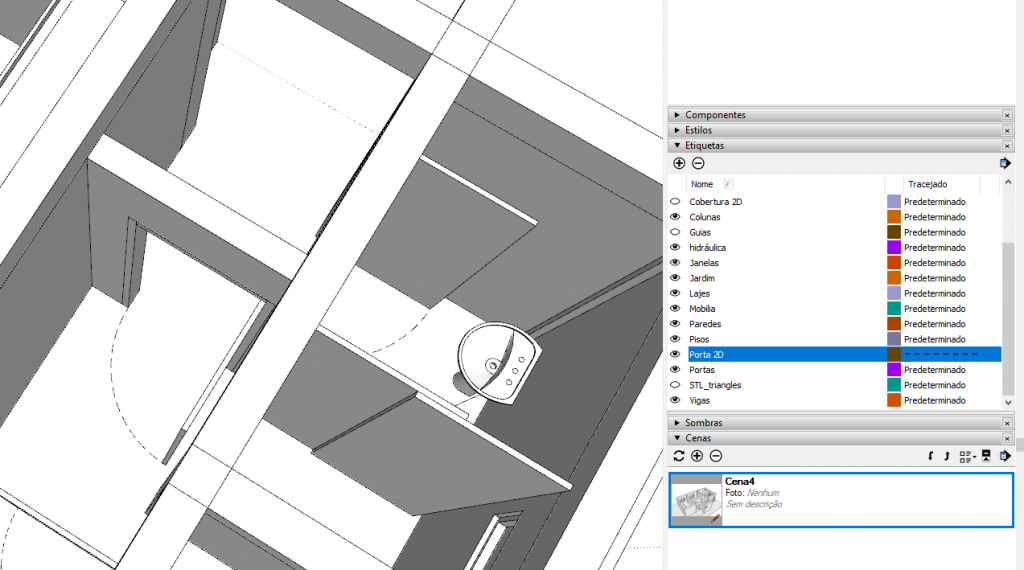
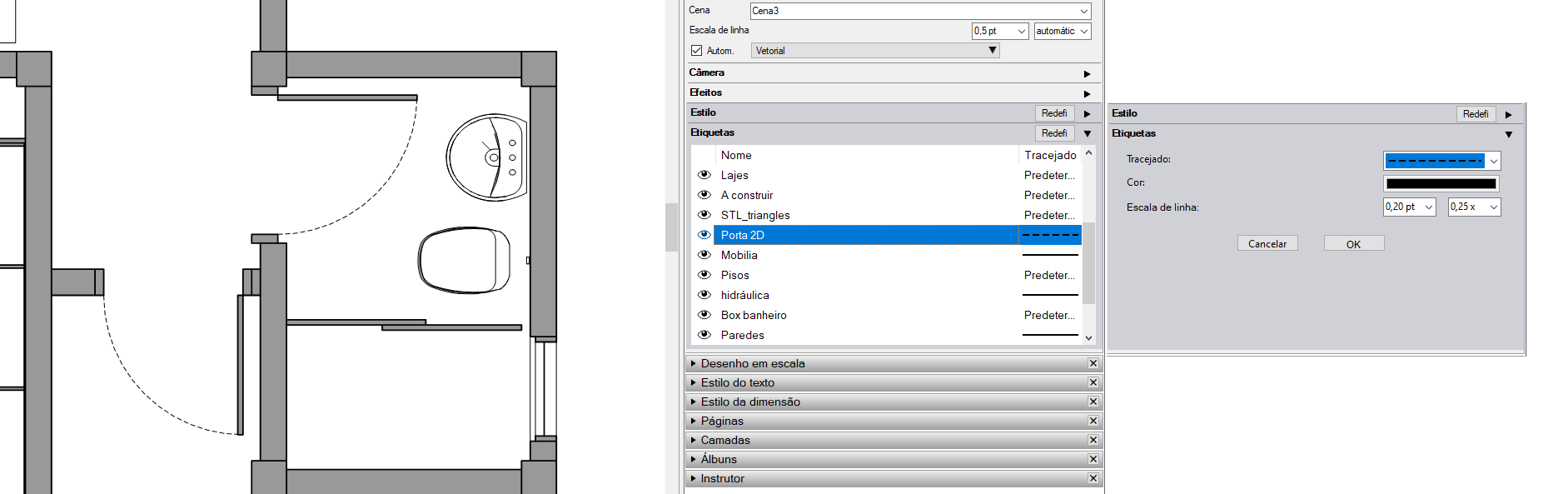
In 2019, SketchUp Pro began offering the ability to change line types based on Layers (Layers), which are now called Tags (Tags). In principle, the change is made in a simple way: a) in the Tags (Tags) window, find the tag that classifies the lines you want to change; b) then, click where it says, by default, "Default", and c) choose the dash style for the lines. In figure 1, you can see the change applied to the Door 2D tag.
This adjustment is simple, but there's a "catch". For the change in the lines to take effect, SketchUp Pro considers the tag associated with the highest-level hierarchical object that contains the lines, whether it's a group or a component. Figure 2 illustrates what can happen, in relation to the door example above, if there is a small difference in how the objects are organized.
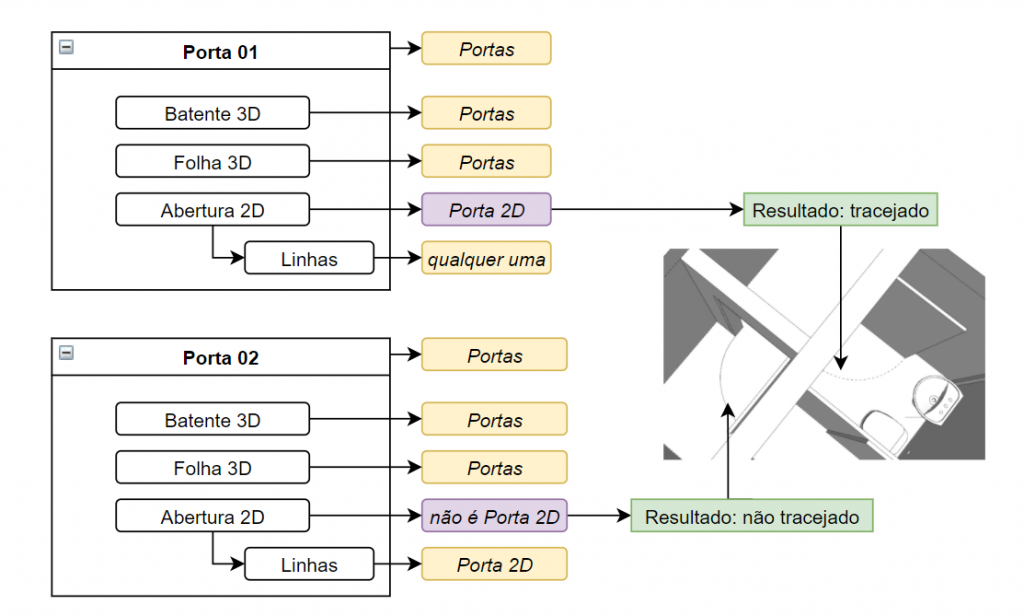
Therefore, for the change in the lines to take effect, SketchUp Pro uses, as a reference, the object's tag - in this case, "Opening 2D" - that is, it ignores the tags applied to the elements that are inside the object.
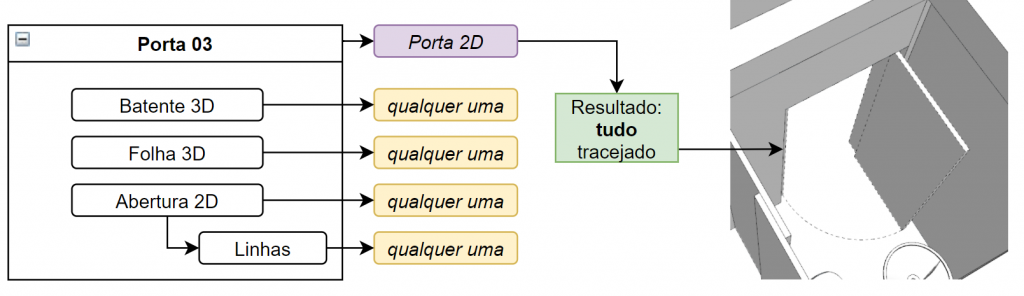
If, in the example above, the Door 2D tag were applied to the object "Door 01" or "Door 02", all the objects inside them would start having their outlines dashed. See this application illustrated in Figure 3.
It's important to remember that, in SketchUp Pro, it is only possible to change the stroke style applied to lines through tags. This means it is not possible to use tags to change line colors and thicknesses. These adjustments can be made in SketchUp LayOut, as explained below.
How to change the appearance of lines in SketchUp LayOut
The big news in the SketchUp LayOut 2020.2 update is the feature that allows you to change line style (colors, thicknesses, and dash patterns), using tags as a reference. These changes are applied per viewport, meaning each viewport stores different line adjustment information, which allows great flexibility in modifying the graphic representation of a project.
To show how it's possible to change the appearance of lines in LayOut, we will use the same example explored in the previous explanation. In Figure 4, you can see that, after a) selecting the viewport, you need to b) choose the tag in order to c) change the appearance of the lines associated with that tag.
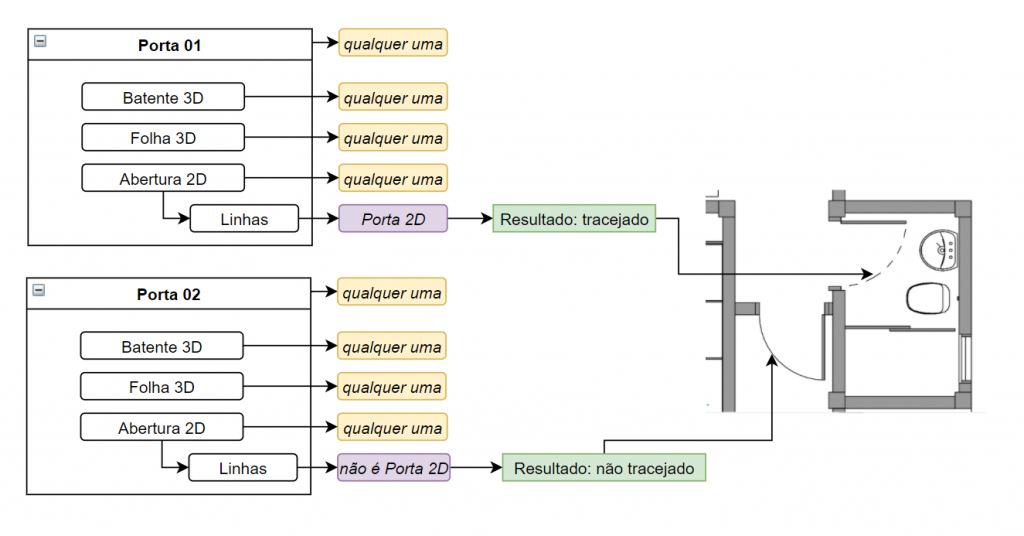
The way this adjustment is made is very similar to the process used in SketchUp Pro, but there is an important difference between the two programs regarding the reference adopted for making the graphic change. Unlike SketchUp Pro, SketchUp LayOut uses, as the reference for the style change, the tag associated with each drawing element, ignoring the tags applied to the objects (groups or components). The diagram shown in Figure 9 makes these relationships explicit.
So, in summary, these were the main points presented in this post:
- In SketchUp Pro, you can change the dash style of lines, but you cannot change their colors and thicknesses. Tags are used as the differentiation criterion;
- SketchUp Pro considers, for changing the dash style of lines, the tag applied to the highest-level hierarchical object;
- In SketchUp LayOut, you can change, per viewport, the appearance of lines - colors, thicknesses, and dash styles. Tags are used as the differentiation criterion;
- SketchUp LayOut considers, in order to change the appearance of lines, the tags applied to the drawing elements. This hierarchical choice is, therefore, completely opposite to the one used in SketchUp Pro.
Would you like to deepen your knowledge of using SketchUp in BIM workflows? Explore EBBIM’s Curso SketchUp Pro para BIM. The training covers model structure, component properties, IFC exchange and LayOut documentation, complementing the topic of this post.