Documentation with Viewports
A viewport is an object that lets you view, on any layer (sheet or design layer), a
drawing made on a design layer. Through viewports, you can build sheets that show floor plans of several stories, perspectives, close-ups of a space, among others, simultaneously and with automatic updates from the original drawings on the design layers. This documentation process with automatic referencing is an important part of what has come to be known as the BIM (Building Information Modeling) system.
how to create a viewport of a plan, elevation, or perspective on a sheet layer
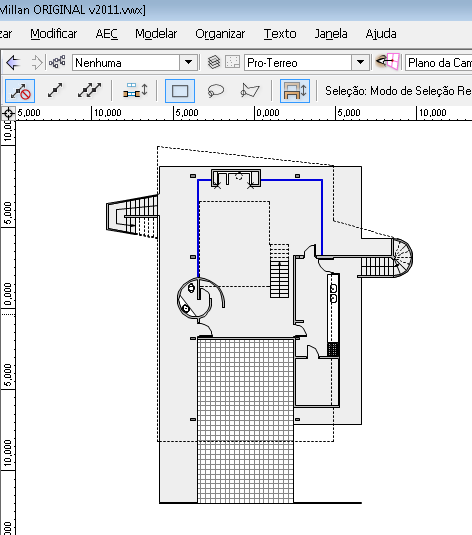
Go to the design layer you want to document (figure 1).
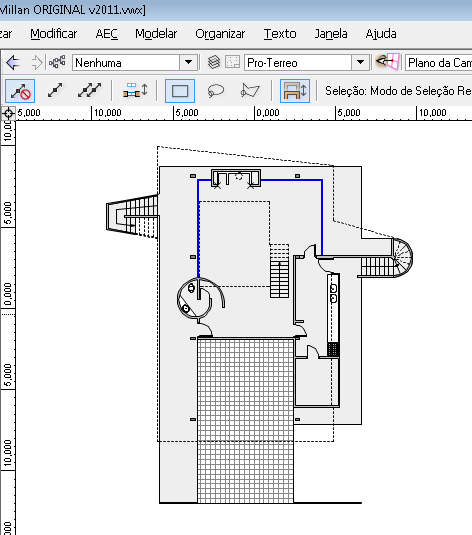
figure 1
Position the viewer however you like: in Top/Plan (Top/Plan) view to see the floor plan (figure 2), some side view to get an elevation, or some position created through the View/Set 3D View (View/Set 3D View) menu, Ctrl+0 (figure 3).
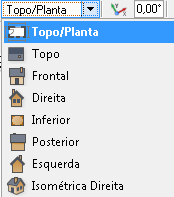
figure 2
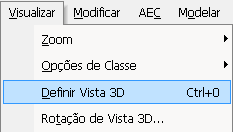
figure 3
Go to the menu View/Create Viewport... (View/Create Viewport...) (figure 4).
figure 4
In the window that opens, fill in the following fields (figure 5):
Viewport Name (Viewport Name): Give your viewport a name;
Drawing Title (Drawing Title): Give your drawing a title;
Create on Layer (Create on Layer): Indicate which layer this viewport will be placed on;
Scale (Scale): Indicate what the viewport's scale will be.
Then click OK and see the viewport placed on the indicated sheet layer.
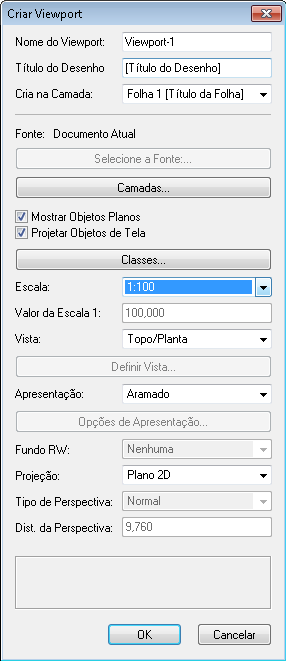
figure 5
how to create a viewport of one design layer inside another
You can create a viewport on a design layer to view, from the layer you're working on, the drawing of another design layer (from your file or from another Vectorworks file). For each viewport on a design layer, you can adjust classes and make cutouts.
Go to the design layer that will be the base of the viewport and position the viewer however you like (figure 1).
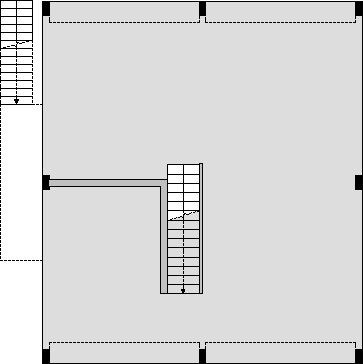
figure 1
Go to the menu View/Create Viewport... (View/Create Viewport...) (figure 2).
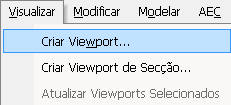
figure 2
In the window that opens, set (figure 3):
Viewport Name (Viewport Name): Give your viewport a name;
Drawing Title (Drawing Title): Give your drawing a title;
Create on Layer (Create on Layer): Indicate which layer this viewport will be placed on;
Scale (Scale): Indicate what the viewport's scale will be.
Then click OK and see the viewport placed on the indicated sheet layer.
figure 3
Viewports created on design layers don't have their own scale and presentation settings, since these are determined by the layer that will receive the viewport.
Did you like this post?
It was based on the topic Organizing and documenting the project, Documentation with viewports,
which is part of the book Vectorworks passo a passo,
available in print or e-book.
For more information or to purchase the book,
visit the site www.probooks.com.br