Creating Smart Legends and Title Blocks with Autotext
ArchiCAD has a smart-fill system for legends, title blocks, and other project-relevant information, based on a two-step process: first, you fill in the project data (and other information); then, you use the autotext tool to insert this information into views and/or layouts.
to fill in the project information (and other data)
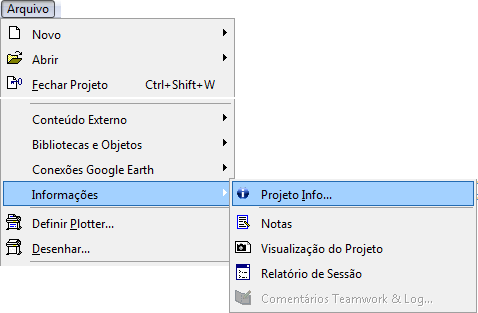
Go to the menu File/Info/Project Info... (File/Info/Project Info...).
figure 1 - location of the project information
In the window that opens, choose the field you want to fill in and then enter the information related to that field. If you want more room to write, click the highlighted button to open the Description menu (Description). You can fill in all the fields, or only the ones you want. If you need to create another field, click Add (Add) and notice that a new field is created. If you want to remove a field you created, click Remove (Remove). If you want all the project data you entered here to be reused in another file (so you don't have to type it all again), click Export... (Export...). A new window will open, so you can choose a location to save the file. Give it a name and click on Save (Save). To retrieve the information from another file, open the same menu and click Import... (Import...). In the window that opens, locate the file and click Open (Open).
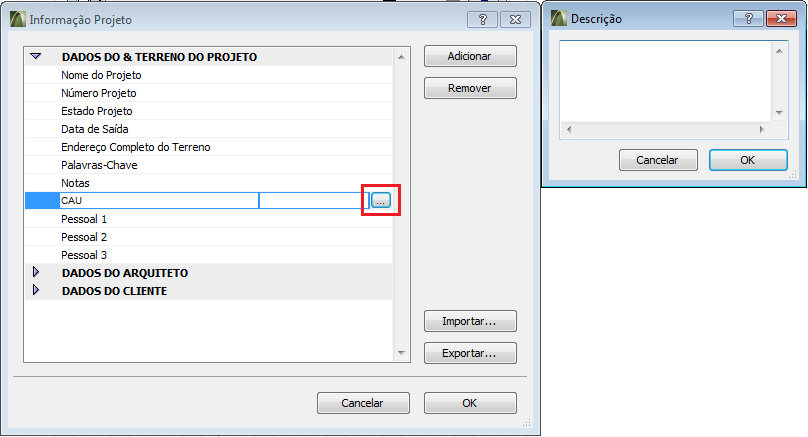
figure 2 - Project Info menu
to insert project information with an autotext
In the Toolbox (Toolbox), click the Text (Text) tool.
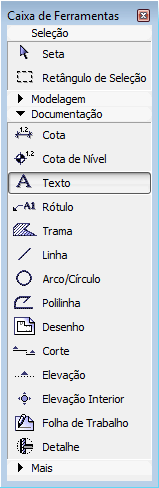
figure 3 - Text tool in the Toolbox
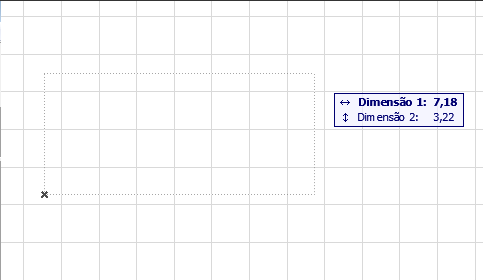
Click where you want to start writing the text; move the cursor and click again where you want to end the text box.
In the floating menu, click the Insert Autotext (Insert Autotext).

figure 5 - Insert Autotext button
In the window that opens, click the highlighted bar to choose the category containing the information you want to insert. In the box below, click the information to be inserted. The box further below shows the text that will be inserted. Click Insert (Insert) to finish.
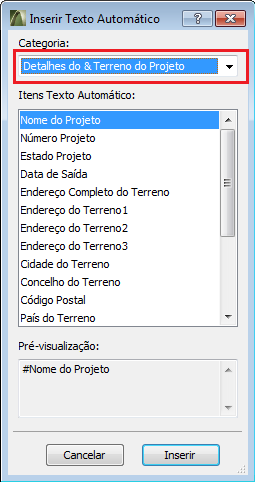
figure 6 - Insert Autotext menu
It's worth remembering that if any project information field is changed, all autotext entries linked to it will be updated automatically.