Counting Objects
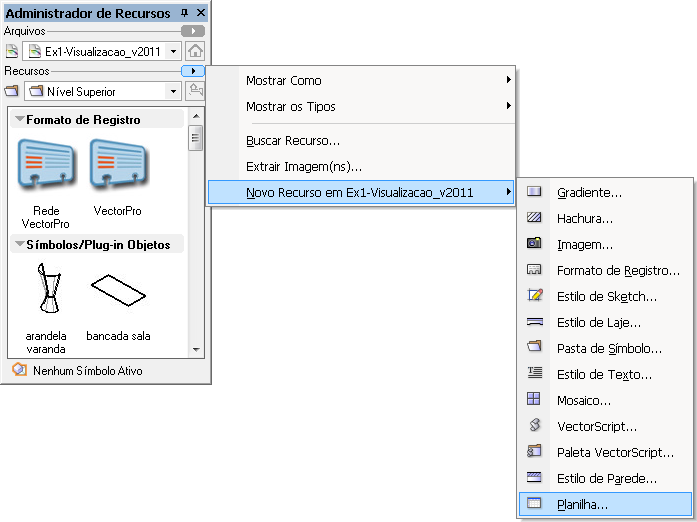
To count objects on just one layer, or in one class, or only certain types of objects, as well as to find the perimeters, areas, and volumes of various drawing elements, follow the instructions below:
to create a new worksheet
Open the Resource Browser (Resource Browser) palette, Ctrl+R.
Click the arrow next to the Resources (Resources) row (a) and choose the New Resource in... (New Resource in...)/Worksheet (Worksheet) option (figure 1).
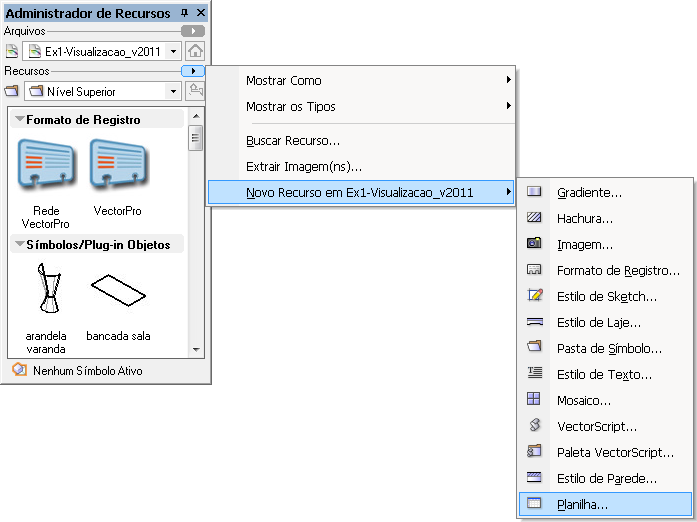
figure 1
Enter a name for your worksheet in the Name (Name) field and choose the desired number of rows and columns. The initial suggestion (10 rows by 5 columns) is fine. If you like, you can change the number of rows and columns later. Click OK to create the worksheet (figure 2).
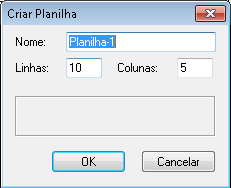
figure 2
The worksheet is stored in the file itself and can be found (and opened) in the Resource Browser (Resource Browser) palette, Ctrl+R. To open it, right-click its name and choose the Open (Open) option (figure 3).
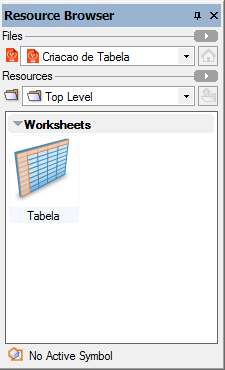
figure 3
to count how many instances exist in a project
Preferably use a project that has several different symbols. Create a worksheet (or open an existing one) and write the names of the symbols you want to count, as in the image below (figure 1).
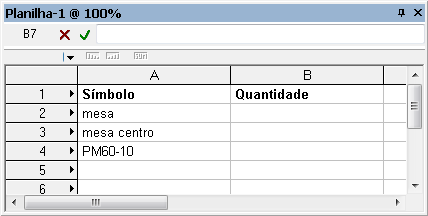
figure 1
Click the worksheet cell that will receive the counting formula.
Click the arrow in the upper-left corner of the worksheet and choose Function... (Paste Function...) (figure 2).
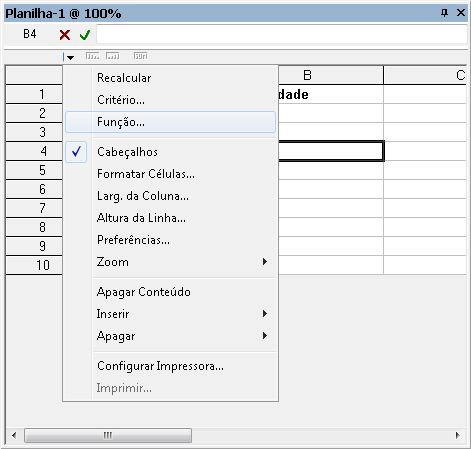
figure 2
In the window that opens, choose the COUNT option and click OK (figure 3).
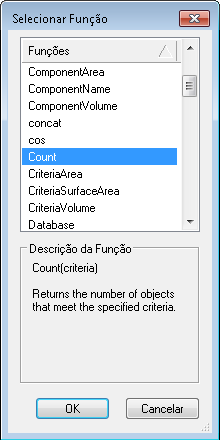
Click the arrow in the upper-left corner of the worksheet again and choose Criteria... (Paste Criteria...) (figure 4).
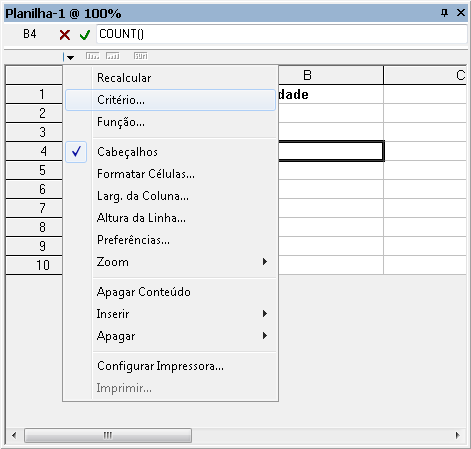
figure 4
Choose the options Symbol (Symbol) is (is) and, in the third column, click the box shown in (figure 5).
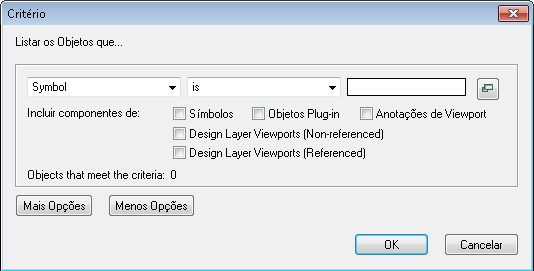
figure 5
In the new window, click the file name and then choose the symbol to be counted. Click OK (figure 6).
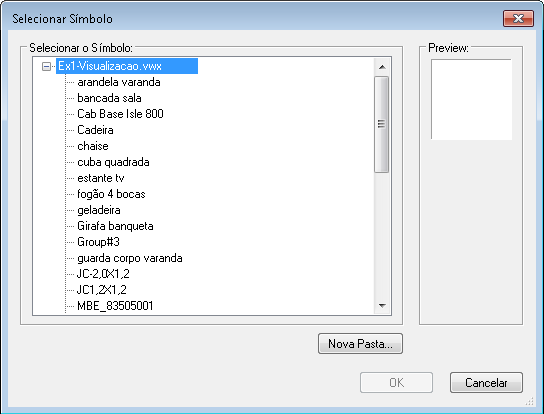
figure 6
Vectorworks returns to the previous window so you can add or remove selection criteria, using the More Choices (More Choices) and Fewer Choices (Fewer Choices) buttons. Then click OK again (figure 7).
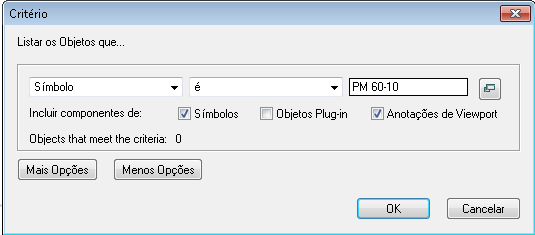
figure 7
Back in the worksheet, put an equal sign "=" before the formula written by Vectorworks and press Enter. Notice the value shown (figure 8).
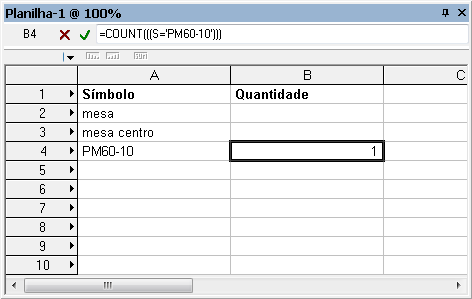
figure 8
If you change the project, adding and removing symbols, you need to tell the report to recount. To do this, click the arrow in the upper-left corner of the worksheet and choose the Recalculate (Recalculate) option (figure 9).
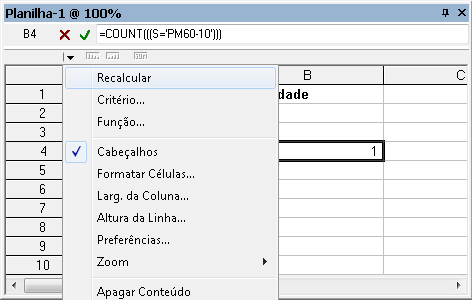
figure 9
Did you like this post?
It was based on the topic Integrating worksheets and the project database, Counting objects, perimeters, areas and volumes,
which is part of the book Vectorworks passo a passo,
available in print or e-book.
For more information or to purchase the book,
visit the site www.probooks.com.br