Dynamic Component from 2 Objects

The invitation to download the extension for free from ProBooks was part of the original publication. The link now opens the publisher’s current catalog; we have not confirmed the availability of that old file there.
You went to the 3D Warehouse and downloaded the components you needed for your project (since starting with SketchUp 8, the 3D Warehouse no longer has direct access through SketchUp), and you even took a look at our list of favorite collections. However, you need to create identical scenes with two different furniture options to show your client, and here we have a nice step-by-step guide for that.
Dynamic Component
With the Componente Dinâmico a partir de 2 objetos plugin, you'll be able to automatically create a dynamic component with two geometry options, "A" and "B".
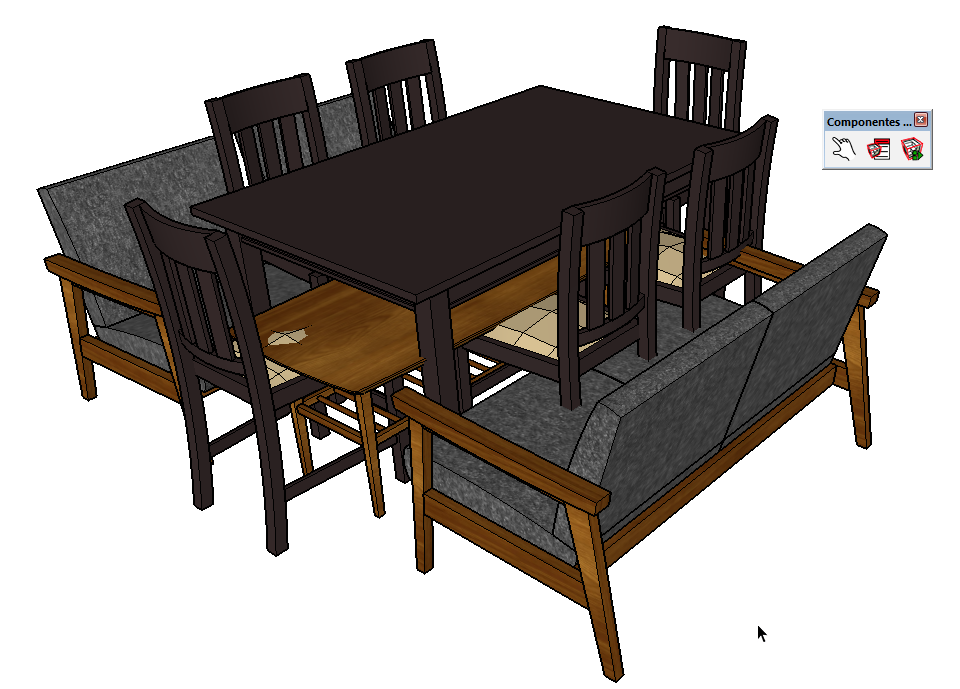
You need to overlap two objects (groups or components) and run the command. Choose a name and click OK. The original objects will be deleted, and you'll be able to switch between the two options of the dynamic component that was created.
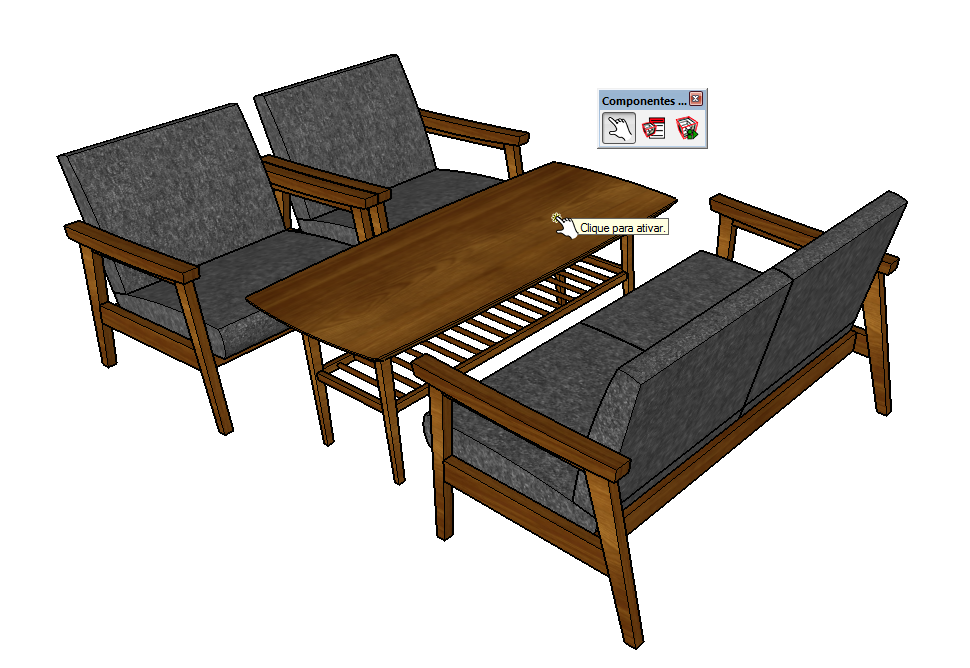
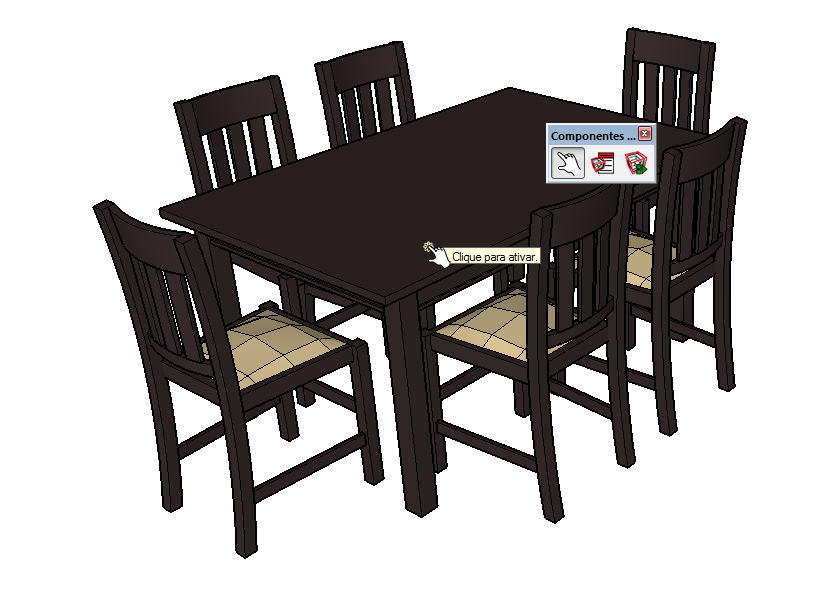
To download the plugin for free, visit: https://www.probooks.com.br/and type "componente dinâmico".
Now that you know how to make presenting your project easier when you have two options, we have another article about how to use the shaded sketch style, for those times when there's no time or it's not the right moment to do a full render...
Did you like our tip? Tell us about it in the comments!
Would you like to deepen your knowledge of using SketchUp in BIM workflows? Explore EBBIM’s Curso SketchUp Pro para BIM. The training covers model structure, component properties, IFC exchange and LayOut documentation, complementing the topic of this post.