How to Use and Edit Dimensions

how to insert a simple, horizontal, or vertical dimension
In the Dims/Notes (Dims/Notes) palette, click the Linear Dimension (Constrained Linear Dimension) tool N.
In the mode bar, choose the Horizontal/Vertical Linear Dimension (Constrained Linear Mode) mode, which is the first button (figure 1).
Then, click the first point to be measured, click the second point to be measured, move the cursor to position the leader line, and click once more (figure 2).
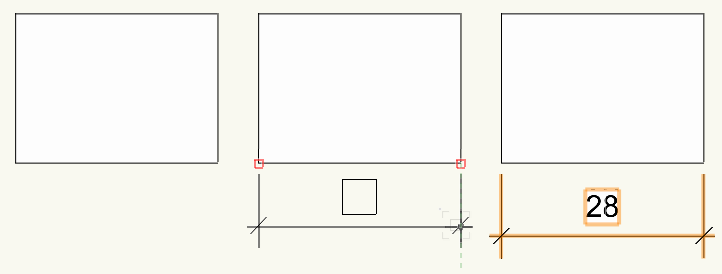
figure 2 - Dimensioning the rectangle.
how to insert sequential dimensions, horizontally or vertically
In the Dims/Notes (Dims/Notes) palette, click the Linear Dimension (Constrained Linear Dimension) tool N.
In the mode bar, choose Sequential Hor/Ver Dimension (Constrained Chain), the second button (figure 1).

Click the first point to be measured, click the second point to be measured, move the cursor to position the leader line, and click once more.
Move the cursor and click where the next dimension will be placed (figure 2).
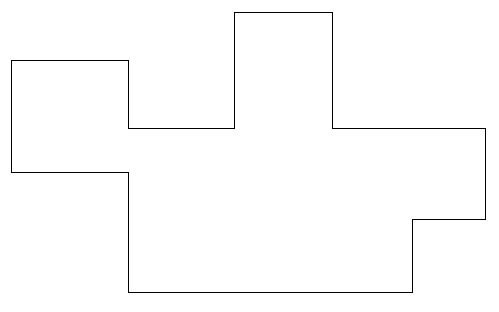
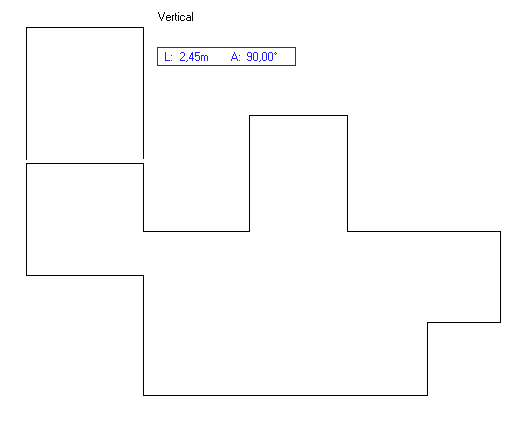
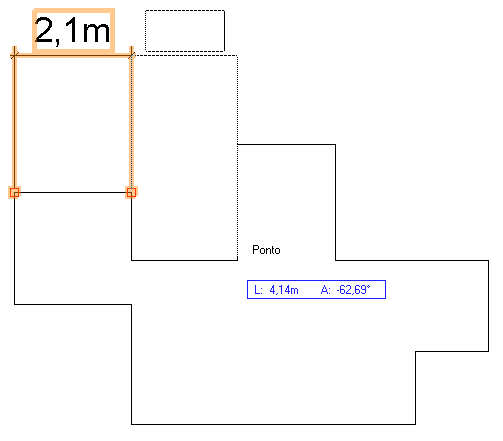
figure 2- Dimensioning the figure with sequential dimensioning.
Did you like this post?
It was based on the topic How to use text and dimensions, How to use and edit dimensions,
which is part of the book Vectorworks step by step,
available in print or e-book.
For more information or to purchase the book,
visit the website www.livrovectorworks.com.br
Would you like to deepen your knowledge of project modeling and documentation in Revit? Explore EBBIM’s Curso Revit. The training covers building elements, families, sites, materials, quantities and drawing sheets, complementing the topic of this post.